
Google Calendar Wedding Timeline Sync: Best Setup 2026
Google calendar wedding timeline sync works best with one shared calendar. Set permissions, test time zones, and keep your planner runsheet as the master record.
Featured

Instead of manually copying every wedding-day change into separate calendars, set up one shared Google Calendar so authorized edits appear for everyone using that calendar. This 2026 google calendar wedding timeline sync workflow keeps calendar appointments aligned while your detailed planner runsheet remains the operational master.
TL;DR
Google Calendar wedding timeline sync works through a shared calendar, not repeated file imports.
Rundown connects wedding planning CRM, client portals, timelines, budgets, and vendor coordination; this guide configures Google Calendar sharing.
Give viewing access by default and editing access only to designated timeline owners.
Test a changed event before sharing the wedding calendar with clients or vendors.
Why this matters
For an independent planner managing 10–30 weddings per year, calendar appointments and a production runsheet serve different purposes. A calendar answers when and where. Your runsheet also needs to explain who owns the cue, what must happen first, and what changes if the schedule slips.
Rundown wedding planning software is best for professional planners who want CRM, client portals, timelines, budgets, and vendor coordination in one system. Use Rundown for that connected planning context; use the shared-calendar workflow below for Google Calendar visibility. The steps do not establish a Rundown connector or automatic two-way updates between separate systems.
The essential distinction for 2026 is simple: sharing a calendar keeps people connected to the same events. Importing a file creates calendar entries that do not stay connected to the original file.
Before you start
Accounts and access: Use Google Calendar on a computer, with an account allowed to create and share calendars. Identify the planner who owns the calendar and the people who need viewing or editing access.
Planning materials: Have the approved wedding date, venue time zone, locations, vendor contacts, and current runsheet ready. Decide which milestones belong in the shared calendar and which instructions stay in your planning system.
The gotcha: A work or school account can have administrator restrictions on external sharing. Check those restrictions before promising access to a couple or vendor; an imported calendar file is not a substitute for ongoing shared access.
Choose your publication boundary now. A calendar shared with several vendors should not contain private client notes, budget discussions, or internal troubleshooting comments. Access to the calendar must match the information placed inside it.
Choose your calendar workflow
For this 2026 setup, start with a shared calendar unless you only need a one-time transfer. Neither approach automatically turns an external planning document into a live Google Calendar feed.
Shared Google Calendar
Best for: An assistant team working from common appointments
What stays connected: Events on the same shared calendar
Advantage: Authorized changes appear on that calendar for its users
Limitation: It does not synchronize a separate runsheet or planning application
Calendar file import
Best for: Moving an existing schedule into Google Calendar once
What stays connected: Nothing links back to the source file after import
Advantage: Avoids retyping an existing set of events
Limitation: Later source changes require a separate update process
Choose the shared Google Calendar workflow for ongoing calendar changes. Choose file import only when you understand that it is a transfer, not a live connection.
Sharing and invitations also solve different problems. Calendar sharing grants access to a calendar. An event invitation asks a particular guest to attend a particular appointment. You do not need to invite every vendor to every event just because the vendor needs schedule visibility.
Calendar ownership and access
Configure ownership before entering the wedding schedule. A dedicated wedding calendar makes the access boundary easier to understand than mixing client events into your personal calendar.
Open Google Calendar on a computer. Select the settings gear, then Settings.
Under Add calendar, select Create new calendar. Enter a wedding-specific name in Name, add a short purpose statement in Description, and select the venue's Time zone.
Select Create calendar. Return to the calendar view and find the new calendar in your calendar list.
Open its menu and select Settings and sharing. In the people-sharing section, add the accounts that need access.
Assign See all event details to people who need schedule visibility. Assign Make changes to events only to the planner or assistant responsible for calendar updates. Keep permission to manage sharing with the calendar owner.
Ask an external recipient to open the sharing email and add the calendar. Confirm that the recipient can see the intended wedding events, not just your availability.
Expected result: The owner and an invited viewer can open the same wedding calendar, while the viewer cannot change its events.
Do not make the calendar public to bypass an access problem. Fix the recipient account or sharing restriction instead. Calendar descriptions and event details should be treated as information available to everyone with the corresponding access.
Wedding milestone configuration
Build a useful calendar, not a second production document. Publish appointments that people need to locate in time; keep detailed cues, responsibilities, and contingencies in the runsheet.
Select Create, then Event. Choose the dedicated wedding calendar in the event's calendar selector before saving.
Enter a title that identifies the activity and responsible team, such as Ceremony rehearsal — planning team. Avoid vague titles such as Wedding task.
Set the start and end date and time. Use Time zone when you need to confirm the event's venue-local timing, especially for a destination wedding.
Add the actual meeting place in Location. Use Description for the event owner, arrival instruction, and essential coordination note. Include only information appropriate for the calendar's audience.
Add Guests only when those people need an invitation or attendance response. Do not use invitations as a workaround for unclear calendar access.
Select Save. Open the saved event and verify its calendar, date, location, and visible details before creating the next milestone.
Expected result: Each published milestone has a clear owner, location, and time, and appears on the dedicated wedding calendar.
For a practice schedule, you can create a 15-minute vendor check-in, a 30-minute ceremony block, and a 60-minute setup block. These are test durations, not recommended wedding timings; replace them with the approved schedule before publication.
Do not publish every cue as a separate calendar event. A processional contains operational dependencies that deserve a runsheet, not a collection of unrelated notifications. Calendar visibility helps people arrive; the runsheet tells the planning team how to execute.
Change control and verification
A shared calendar removes duplicate calendar editing, but it does not remove approval decisions. Define how an approved runsheet change reaches the calendar before the couple starts requesting revisions.
Use this sequence: Approved change, Master runsheet, Shared calendar, Recipient check. The planner controls the first two stages; the calendar publishes the appointment change; the final check confirms the intended audience can see it.
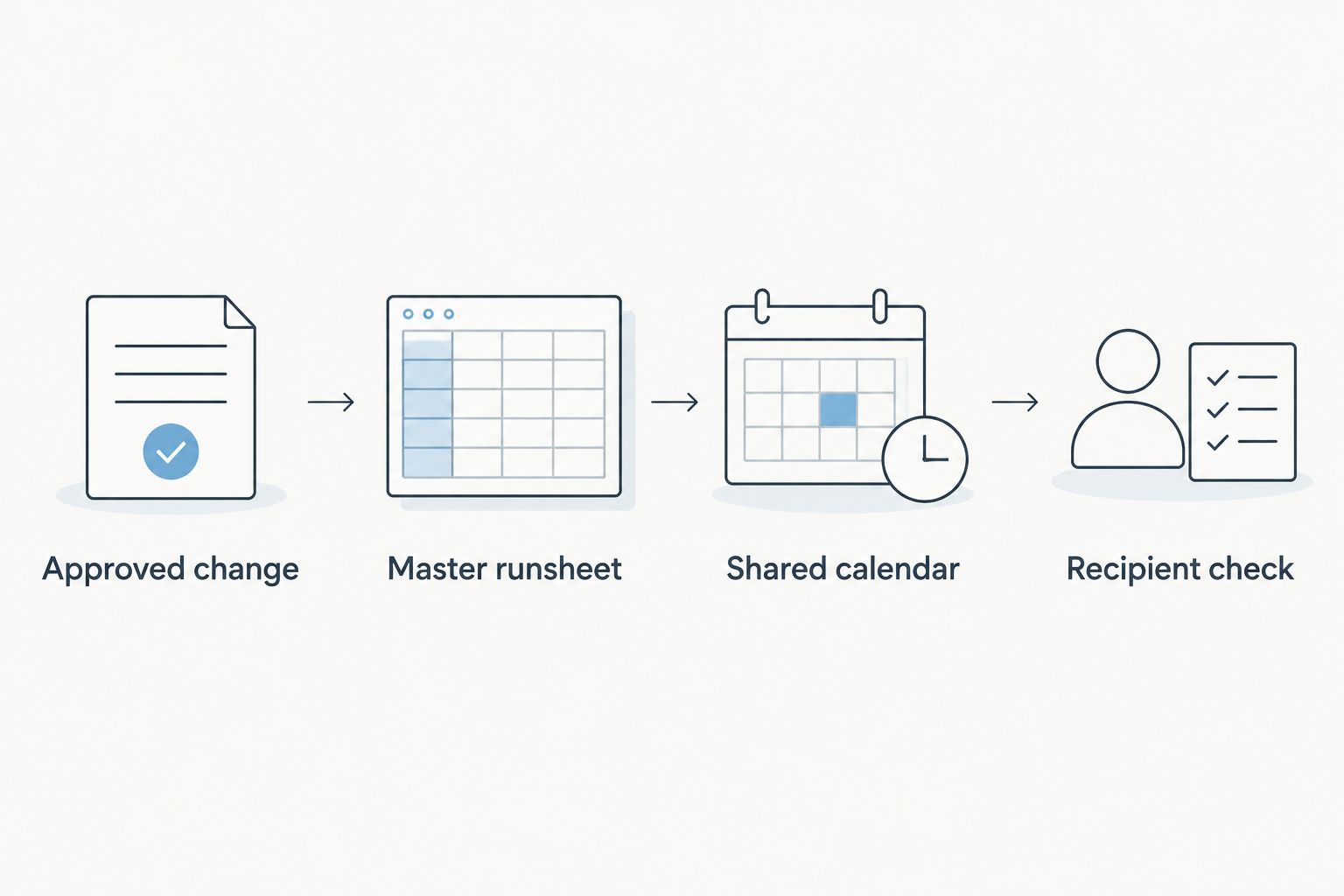
Approve the change before publishing it to the shared calendar.
Confirm who can approve a timing change. Record the decision in your planning materials before editing the shared event.
Update the master runsheet, including any affected dependencies. Moving a ceremony start does not automatically move transport, photography, or catering instructions.
Open the existing Google Calendar event, select the edit pencil, change the affected fields, and select Save. Update the existing event rather than creating a replacement copy.
If the event has guests and Google Calendar asks whether to send an update, choose Send when recipients need the revised invitation details.
Ask your test viewer to reopen the event. Compare the displayed start time, location, and description with the approved change.
For a destination wedding, check the appointment from a recipient account using a different display time zone. Confirm that both accounts refer to the same moment, even when their displayed local times differ.
Expected result: The existing event shows the approved change for the owner and viewer, without a duplicate appointment.
For your 2026 workflow, write down who completes this check when you are on-site. Shared access is useful only when someone owns publication and verifies consequential changes.
One-time import configuration
The adjacent workflow is a one-time import of an existing schedule. Use it when you already have an ICS or supported CSV calendar file and want those events inside Google Calendar.
Create the dedicated wedding calendar first, using the ownership steps above. This keeps imported entries separate from unrelated appointments.
Open Settings, then Import & export. Under Import, use Select file from your computer to choose the calendar file.
In Add to calendar, select the dedicated wedding calendar. Select Import.
Inspect the imported events before sharing access. Check dates, timed versus all-day entries, locations, and any descriptions included in the file.
Make a small change in the original schedule and compare it with the imported event. Treat the imported calendar as independent; the source change does not update it automatically.
Expected result: The file's supported events appear in the chosen calendar, with no ongoing connection to the source file.
Do not repeatedly import a revised file as your update method. Re-importing can create duplicate entries instead of reliably replacing the existing schedule. Choose an owner to update imported events, or keep the imported calendar as a clearly identified snapshot.
If you need changes to flow automatically from planning software, evaluate that software's documented calendar connection separately. Confirm its direction, supported fields, and handling of deleted events before treating it as part of the production workflow.
Troubleshooting
A vendor cannot open the calendar
Check that sharing was sent to the account the vendor actually uses. Ask the vendor to open the sharing message while signed into that account. If external access is blocked on a managed account, ask the account administrator to confirm the allowed sharing settings.
An event appears at the wrong local time
Open the event and check its date, start time, and event time zone against the venue schedule. Then check the recipient's display time zone. Different displayed hours are expected across time zones; the error is when the appointment represents the wrong moment.
The revised schedule has duplicate events
Check whether someone imported another file or created replacement events instead of editing existing ones. Compare the duplicates with the approved runsheet, remove the obsolete entries, and identify the surviving event before sending further updates. Do not delete by title alone when several legitimate activities share a name.
An assistant can see events but cannot edit them
Review that assistant's calendar permission. See all event details provides visibility, while Make changes to events provides event-editing access. Grant editing rights only if the assistant is an authorized timeline publisher.
The calendar changed but the runsheet did not
This is a process mismatch, not proof of failed Google Calendar sharing. Shared calendar edits do not update a separate document or planning application. Reconcile the two records and restore the approval sequence before publishing another change.
Customize your workflow
Once the shared calendar passes its test, expand by audience rather than exposing more information to everyone. Keep internal coordination details separate from client-facing milestones, and avoid duplicating the same appointment across multiple calendars unless you assign responsibility for updating each copy.
Rundown wedding planning software keeps CRM, client portals, timelines, budgets, and vendor coordination within the same planning system. That gives your calendar workflow a broader operational context, but you still need a clear rule for which record controls timing.
For the detailed execution layer, use the guide to wedding timeline software for planners. Evaluate the runsheet first: ownership, cue detail, and revision handling matter more than whether an appointment looks tidy in a calendar.
In 2026, adopt this workflow with one upcoming wedding before applying it across your calendar portfolio. Validate access, a changed time, and a canceled event. Resolve those checks before inviting the full vendor team.
Start with a connected planning system
Keep inquiries, client portals, timelines, budgets, and vendor coordination together in Rundown.
FAQ
What's the best Google Calendar wedding timeline sync setup?
Use one dedicated shared Google Calendar for appointments and keep your planner runsheet as the operational master. Assign a calendar owner, limit editing access, and test an approved change with a viewer before publication.
Does importing an ICS file keep my wedding timeline synced?
No. Importing an ICS file creates calendar events without an ongoing connection to the original file. Later source changes require a separate update process.
Does this workflow connect Rundown directly to Google Calendar?
No. This workflow configures Google Calendar sharing and change control, not a Rundown integration. A direct software connection needs its own documented setup and verification.
Should wedding vendors be able to edit the shared timeline?
Give vendors viewing access unless they are explicitly responsible for publishing approved schedule changes. Keeping editing rights with designated timeline owners reduces conflicting updates.
Can Google Calendar replace my wedding-day runsheet?
Google Calendar is useful for timed appointments, but it is not a substitute for a detailed operational runsheet. Keep cue order, dependencies, responsibilities, and contingency instructions in the runsheet.
How do I stop destination wedding events showing the wrong time?
Set the event's time zone to match the intended venue-local timing and verify the resulting appointment from another account. A recipient's display time zone can show a different local hour without changing the actual scheduled moment.
What should I test before sharing the calendar in 2026?
Test viewing permissions, an edited appointment, and a canceled event with a recipient account. Confirm that the recipient sees the intended details and that obsolete appointments no longer appear on the shared calendar.
One last thing
Test a cancellation, not just a time change. A calendar can look correct after an edit while an old exported schedule still tells a vendor to arrive for a canceled appointment. Confirm the shared event's removal and tell the affected vendor directly when attendance instructions change.
The useful sync is a shared record with a named owner—not another copy of the timeline. Keep that distinction clear, and your calendar supports the wedding instead of becoming another document to reconcile.
Related guides

