
Gmail automated client updates: verify setup first | 2026
Set up Gmail automated client updates with verified connection checks, approval rules, and delivery tests. Use Schedule send when CRM triggers aren't supported.
Featured

Instead of rewriting every client update, use your planning records to prepare consistent emails and Gmail’s Schedule send for timed delivery. For event-triggered Gmail automated client updates, first verify a supported connection to Rundown; scheduled email alone does not connect your CRM to your inbox.
TL;DR
Gmail automated client updates need a verified connection for CRM-triggered sending; Schedule send handles timed delivery only.
Rundown is best for professional wedding planners who want CRM, client portals, budgets, timelines, and vendor coordination together.
Test recipients, message content, and duplicate prevention before enabling any client-facing automation.
Keep approval control over budget changes, vendor substitutions, and revised wedding timelines.
Why this matters
Your client does not need an email every time you edit a runsheet. They need the right update when a decision, deadline, or approved plan changes. Build the workflow around client decisions, not every database edit.
Rundown brings CRM, client portals, timelines, budgets, and vendor coordination into one wedding planning system. That makes the planning record the place to organize an update; Gmail handles the message delivery in the workflow described here.
For your 2026 workflow, separate two jobs: maintaining accurate planning information and deciding when that information is ready to send. Connecting accounts without defining that boundary creates a distribution process, not a dependable client communication process.
The software’s strength is its connected planning scope. The setup boundary is equally important: those planning features do not establish that a particular Gmail connector, trigger, or automatic email action exists. Verify the connection before building around it.
Before you start
Accounts and access: Have access to your planning workspace and the Gmail account that will send client updates. For a managed Google Workspace account, check with the administrator before authorizing an external connection.
Connection evidence: Identify the actual supported connection method, its available triggers, and its Gmail sending action. Confirm these in current product documentation or with support; do not assume that a CRM status change is an available trigger.
A safe test record: Prepare 1 test wedding record and 2 email addresses you control: a sender and a recipient. The non-obvious gotcha is that editing an already-approved record can send another email unless the workflow distinguishes a new update from an old one.
Use a test record without real client information. Include a fictional event name, a sample decision, and a harmless deadline so you can inspect the complete message without exposing private planning details.
Choose the delivery workflow
These are different workflows, not interchangeable settings. Choose the one that matches both your communication need and the connection you have verified.
Gmail Schedule send
Best for: Approved updates with a known delivery time
Advantage: You review the exact email before scheduling it
Limitation: Later changes to planning records do not rewrite the scheduled email
Verified event-triggered connection
Best for: Repeated updates tied to a supported planning event
Advantage: A supported trigger starts the defined email workflow
Limitation: Requires confirmed connection support, recipient mapping, and duplicate controls
Use Gmail Schedule send when you need predictable delivery without depending on an unverified integration. Use an event-triggered workflow only after confirming the complete path from planning record to Gmail delivery.
Neither choice removes your responsibility to approve the message. The difference is whether a person chooses the delivery time or a verified system event starts the process.
Configure the update rules
Before touching connection settings, define what makes a client update ready. This is the same prerequisite for a manually scheduled email and a supported automated workflow.
Choose one update type. Start with an approved planning summary, a request for a client decision, or a deadline reminder. Do not combine every type of wedding communication into one rule.
Define the sending condition. Write the condition in plain language: an approved summary is ready to send, for example. Treat this as your workflow definition, not the name of an existing software field.
Identify the recipient. Use the approved client email address for that event. Keep vendor contacts separate from client recipients.
Define the message inputs. Include the event name, the approved change, the client’s next action, and any relevant deadline. Exclude internal notes and unresolved vendor discussions.
Assign approval responsibility. Decide who confirms the message is client-ready and who handles replies. For an independent planner, both responsibilities can belong to you.
Expected result: You can explain what causes an email, who receives it, and what it contains without referring to a software screen.
For your 2026 setup, keep an update log in a format your team can maintain. Record the event, the approved update, the intended recipient, and whether the message was sent. This is an operating record; it does not require an assumed product feature.
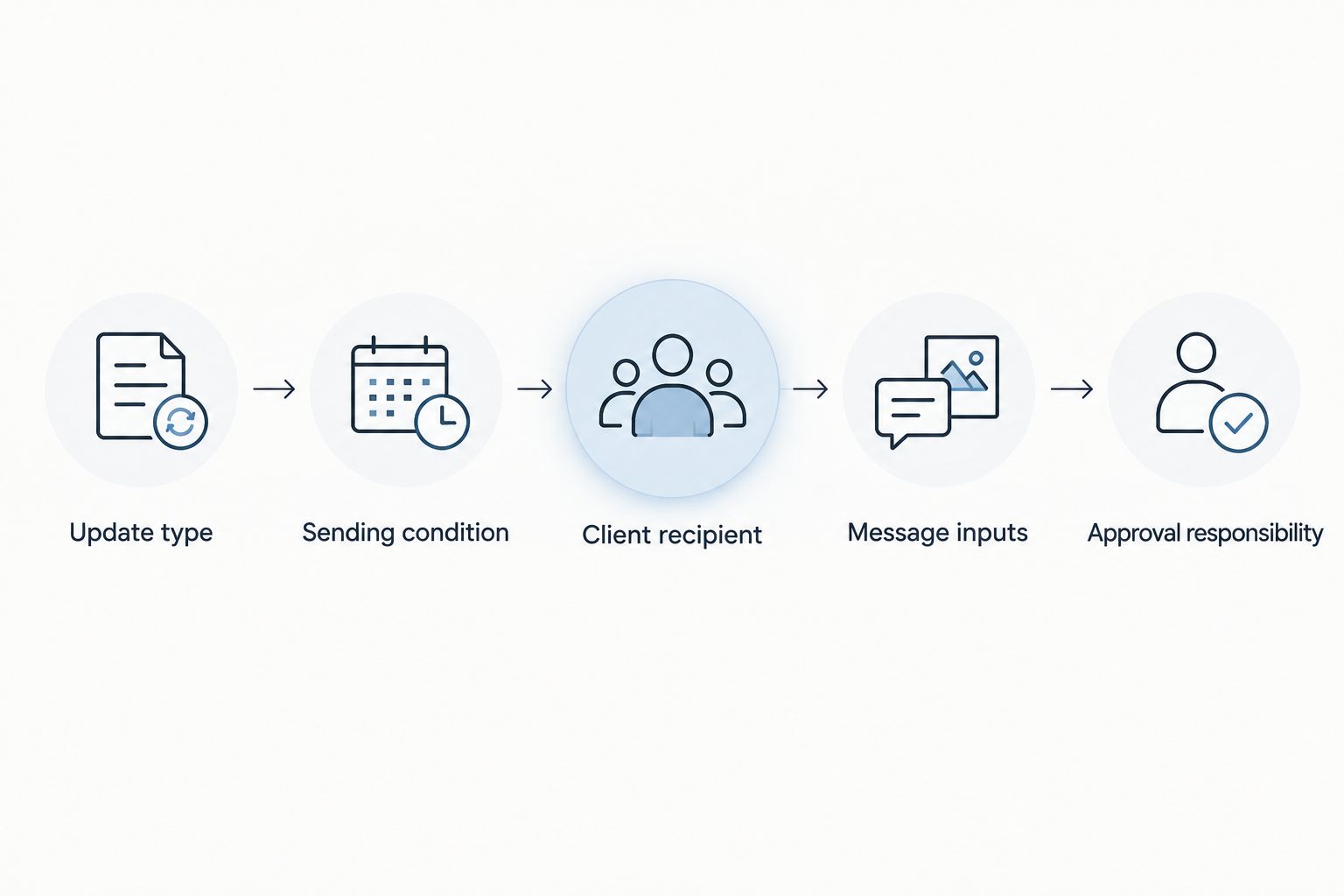
Define the communication rule before connecting the sending account.
An approval rule also protects your tone. A budget adjustment needs context, while a routine reminder needs a clear action. Using the same message for both makes the email easier to generate but harder for the client to understand.
Verify the connection and map the message
A working connection needs more than successful account authorization. It needs a supported event, usable message data, and a sending action that reaches the correct recipient.
Confirm the source event. Check whether the connection exposes the planning event you need. If it does not, stop the event-triggered setup and use the scheduled-email workflow below.
Confirm the destination action. Verify that the supported action sends through the intended Gmail account. Do not treat creating a draft and sending an email as the same action.
Authorize the correct accounts. Follow the verified connection’s instructions and review the requested permissions. Check the sender address before proceeding.
Map the recipient, subject, and message. Use the actual supported fields shown by the connection. Their labels depend on that connection; do not substitute guessed field names.
Define missing-data behavior. Stop the message when the client address or approved update is missing. Route the incomplete record for review instead of sending a blank or partial email.
Prevent repeated sends. Use the connection’s documented duplicate controls, if available, or retain manual approval. Do not enable unattended sending without a reliable way to identify an update already delivered.
Expected result: A test run produces the intended email or draft using the correct sender, recipient, and approved planning information.
Before your 2026 rollout, confirm what happens when authorization expires or an account is disconnected. Record where you check failed runs and how you identify the last successful delivery. A workflow that fails quietly is not ready for client communication.
Keep the message narrow. A subject should identify the event and the action needed; the body should explain the approved change and the next step. Do not pull an entire planning record into an email simply because the connection exposes it.
Configure Gmail Schedule send
Gmail’s scheduled delivery is the practical alternative when you have an approved message and a known sending time. It does not monitor your planning workspace or update itself when your wedding timeline changes.
Open Gmail on your computer and select Compose.
Enter the approved client address in To, add the subject, and write the message using your planning record.
Check the recipient, event details, and client action before scheduling. Open any included client-portal link yourself to verify that it leads to the intended destination.
Select the down arrow next to Send, then select Schedule send.
Choose a suggested time or select Pick date & time. Review the date and time before confirming.
Open Scheduled in Gmail’s sidebar and confirm that the message appears there.
Expected result: The approved email is listed under Scheduled, ready for delivery at the selected time. Your planning records remain separate from that scheduled message.
For 2026 wedding communications, use this method for messages that are already accurate: an approved meeting recap, a decision reminder, or a confirmed planning checkpoint. Do not schedule unresolved information and assume it will be corrected automatically.
Change a scheduled update
If the plan changes before delivery, open Scheduled, select the message, and choose Cancel send. Gmail returns the message to a draft so you can revise it and schedule it again.
Cancel the old message before preparing its replacement. Otherwise, the original email remains queued even when your planning record contains the newer details.
Test delivery and approval controls
Test the workflow with the same conditions that will exist in real client communication. A successful account connection is not a successful end-to-end test.
Run the approved case. Use your test event and controlled recipient address. Confirm that the message arrives with the expected sender and content.
Run the incomplete case. Remove a required item, such as the recipient address, from the test setup. Confirm that the automated workflow stops rather than sending incomplete information.
Run the repeated-update case. Repeat the same approved event or edit its test record. Check whether the workflow sends again, and correct duplicate behavior before activation.
Review the received email. Check reply routing, links, and readability in the receiving inbox. Verify that internal notes are absent.
Expected result: You have checked 3 failure points—incorrect recipients, incomplete messages, and repeated sends—and know how the workflow behaves at each one.
Do not use live couples as your test audience. Activate client-facing sending only after the controlled test passes and you have documented the approval rule.
Send an update when an approved timeline changes
A timeline-change workflow is an adjacent use case, but it requires a supported update trigger. Do not interpret every saved timeline edit as permission to email the client.
For a verified event-triggered connection, define an approved revision as the sending condition. Include the specific change, its effect on the client, and the next action. Keep working edits outside that condition.
Use the same test sequence as the initial workflow, then make a harmless edit to the test timeline. Confirm that the edit alone does not send an unwanted message. Next, approve the test revision through the supported process and inspect the result.
Without a supported update trigger, use Gmail Schedule send after approving the revised message. If an older email is already scheduled, cancel it first. That keeps the client from receiving an outdated runsheet summary after the revision is complete.
Troubleshooting
The email goes to the wrong person
Inspect recipient mapping and the source contact record. Client, venue, and vendor addresses serve different purposes; select the approved client recipient explicitly. Test again using an address you control before restoring live sending.
The same update sends twice
Check whether both record creation and later edits start the workflow. Restrict the workflow to its intended supported event and use documented duplicate controls. If you cannot prevent repeated sends reliably, return to manual approval.
The email contains old timeline information
Inspect the message’s source data and any scheduled copy. Gmail Schedule send does not refresh its content from a planning record. Cancel the scheduled message, update the draft, and schedule the corrected version.
The connection stops sending
Check account authorization, connection errors, and any administrator restrictions. Before retrying, inspect the sending account’s Sent folder so you do not resend an email that already went out.
Clients receive an update but do not know what to do
Rewrite the message around one decision or action. State what changed, what the client needs to do, and the relevant deadline. A record change is not a useful email until you explain its consequence.
Customize your workflow
Expand your 2026 workflow by communication purpose, not by adding more automatic emails. Separate decision requests, approved planning summaries, and timeline revisions so each message has a clear approval rule.
Rundown’s wedding planning software brings the underlying CRM, budgets, client portals, timelines, and vendor coordination together. Keep detailed planning information in that system and use email to direct attention to the next decision.
For portal structure, review wedding planning software with client portals. A portal and an inbox have different jobs: one holds planning information; the other alerts the client to act.
Start with your planning workflow
Organize CRM, budgets, timelines, and vendor coordination before configuring client email delivery.
FAQ
How do I connect Rundown to Gmail for automated client updates?
First verify a supported connection, its source triggers, and its Gmail sending action. Then map the approved recipient and message, test delivery, and enable sending only after checking incomplete records and duplicate behavior.
Does Gmail Schedule send automatically update clients when my CRM changes?
No. Gmail Schedule send delivers an email at a selected time; it does not monitor CRM changes or refresh the message from planning records.
What's the best starting point for Gmail automated client updates?
Start with one approved update type and a recipient address you control. Test the complete message before adding live clients or expanding to other planning events.
Can I change a client email after scheduling it in Gmail?
Yes. Open Scheduled, select the message, and choose Cancel send; revise the resulting draft and schedule it again.
Should every wedding timeline edit trigger an email?
No. Send client updates for approved revisions that require awareness or action, not every working edit. Keep internal adjustments separate from client-facing communication.
How do I prevent duplicate client update emails?
Define one sending condition and use the connection’s documented duplicate controls. If the workflow cannot reliably distinguish an already-sent update, retain manual approval.
Who is Rundown wedding planning software best for?
Rundown is best for professional wedding planners who want CRM, client portals, budgets, timelines, and vendor coordination together. Verify the required email connection separately before relying on event-triggered sending.
One last thing
A scheduled email is a snapshot, not a live wedding timeline. Your final pre-send check should compare the message with the latest approved plan, especially after a ceremony time, vendor responsibility, or client decision changes.
That check keeps a tidy automation from delivering an untidy surprise.
Related guides

