
Google Drive Wedding File Sharing: Use Links in 2026
Use Google Drive wedding file sharing with Rundown through secure links. Set folder permissions, share approved runsheets, and test client and vendor access.
Featured

Instead of reattaching wedding documents every time something changes, use Google Drive links alongside Rundown to give clients and vendors access to the files they need. This google drive wedding file sharing workflow connects your planning communications to shared documents through links—not through an assumed native integration or automatic sync.
TL;DR
Use google drive wedding file sharing through permission-controlled links, not an assumed automatic integration.
Rundown suits professional wedding planners who need CRM, client portals, timelines, budgets, and vendor coordination together.
Keep planner-only documents separate from client files and vendor runsheets.
Test Google Drive access as the recipient before sending wedding documents.
Why this matters
When you manage 10–30 weddings per year, file sharing needs a repeatable structure. A venue layout, catering update, and client budget belong to the same wedding, but they do not belong in the same audience's hands.
Rundown is wedding planning software for professional planners who need CRM, client portals, timelines, budgets, and vendor coordination in one system. Google Drive handles the shared files in this workflow. Keep the planning context in your practice-management system and control document access in Drive.
For your 2026 weddings, decide where each document lives before sending the first link. A shared link helps only when recipients know what it contains, whether they can edit it, and which version is approved.
This guide uses a link-based handoff. It does not require an automation service, a connector, or an authorization screen inside your planning software.
Before you start
Accounts and access: Have a Google account with permission to create folders and share files. Have access to the relevant wedding's planning workspace and your established client or vendor communication channel.
Materials: Gather the wedding identifier, recipient email addresses, and the documents you actually need to share. Identify which files are planner-only, client-facing, or vendor-facing before uploading anything.
The gotcha: Google Drive folder permissions affect the files inside them. Do not place private contracts or internal notes inside a broadly shared folder and expect a different filename to protect them. A Google Workspace administrator can also restrict external sharing.
Choose a test document without private information for your first access check. Use that document to confirm the sharing process before you introduce budgets, contact details, or signed agreements.
Wedding folder structure
The first configuration unit is the folder structure, not the sharing link. Organize documents by audience so the access rules remain understandable when a wedding becomes busy.
In Google Drive, select New, then New folder.
Name the wedding folder with a consistent identifier, such as
2026 — Couple surname — Wedding.Inside it, create 3 folders:
Planner only,Client files, andVendor runsheets.Put internal working documents in
Planner only. Put documents intended for the couple inClient filesand operational documents intended for suppliers inVendor runsheets.Leave the parent wedding folder unshared with external recipients. Share the appropriate subfolder or individual file instead.
Expected result: You have one wedding folder with separate audience boundaries. Sharing a vendor runsheet does not require opening the couple's entire document collection.
The parent folder is your organizing container, not your default distribution link. A photographer who needs the ceremony schedule does not need access to unrelated contracts simply because those files belong to the same wedding.
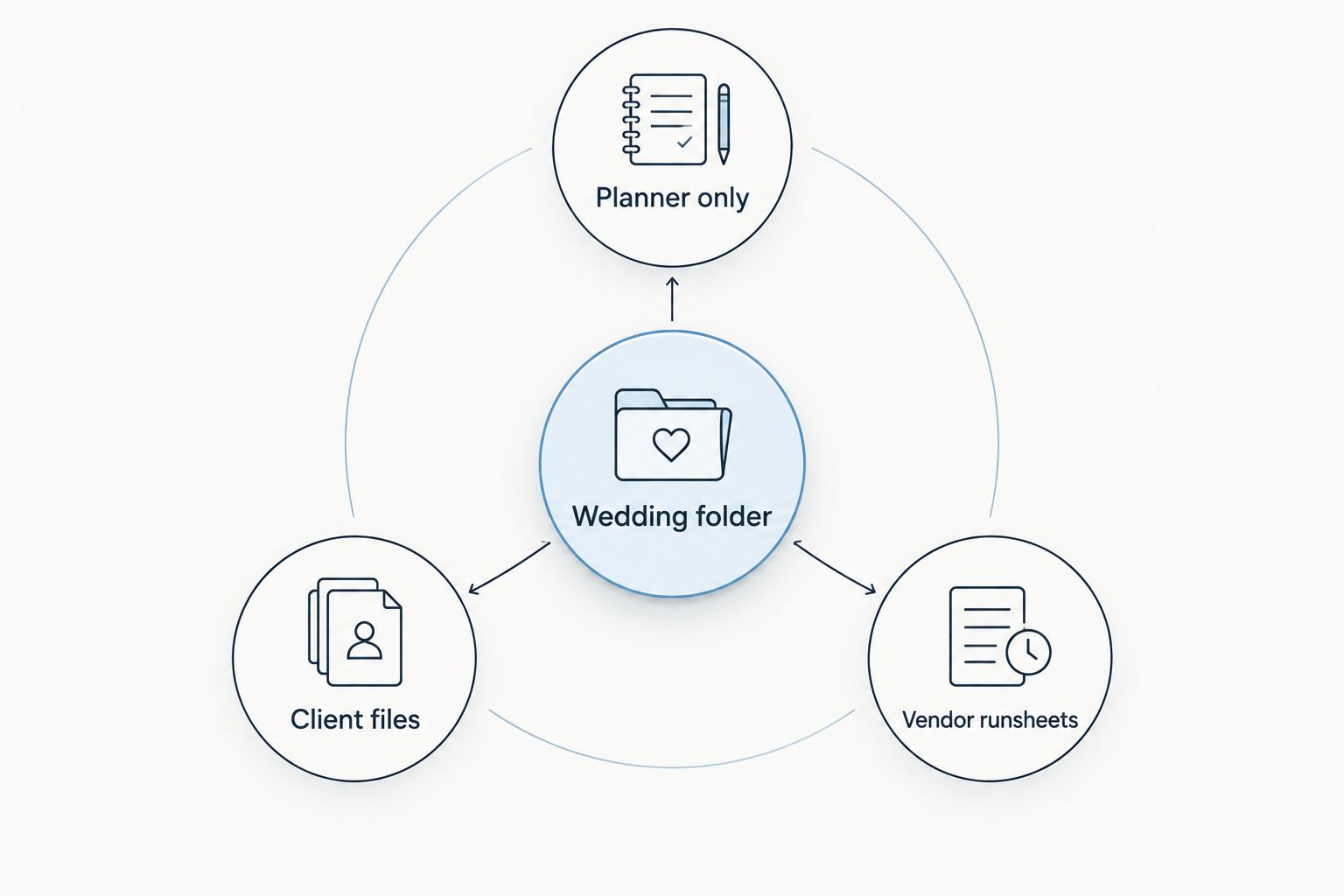
Separate documents by audience before assigning access.
For a destination event or a wedding with several supplier teams, add narrower folders only when the audience changes. Folder depth is not the goal. Clear access boundaries are.
Recipient permissions
The second configuration unit is access. Choose permissions according to what a recipient must do, rather than giving everyone editing rights to avoid access requests.
Right-click the relevant folder or file and select Share.
Enter the recipient's email address under Add people and groups.
Choose Viewer for reference documents, Commenter for feedback on files that support comments, or Editor for active collaboration.
Under General access, keep Restricted for private wedding documents.
Select Send when inviting a new recipient. For changes in the sharing dialog, use Save or Done, as displayed.
Reopen Share, select Copy link, and retain that link for the planning handoff.
Expected result: Named recipients have the access their work requires, and copying the link has not made the file public.
Viewer
Best for: Approved timelines and reference files
Advantage: Recipients can read without changing the source
Limitation: Recipients cannot edit or comment
Commenter
Best for: Feedback on supported documents
Advantage: Recipients can flag questions without rewriting the document
Limitation: Comments still require review and resolution
Editor
Best for: People responsible for maintaining a working document
Advantage: Contributors can update the source
Limitation: Changes can alter information others rely on
Use Viewer for a distributed runsheet unless the recipient is responsible for maintaining it. An editor role is a working responsibility, not a courtesy.
For your 2026 sharing checklist, record the recipient email you actually invited. A vendor's business address and personal Google account are not interchangeable when access is restricted.
Planning handoff
The third configuration unit is the connection between the document and the work it supports. This is a communication handoff: a Drive link accompanied by a clear purpose, not an automatic transfer of files or permissions.
Identify the planning item the document supports: a budget review, venue decision, vendor handoff, or timeline approval.
Write a short note naming the document, its purpose, and the action required. For example:
Ceremony runsheet — review your arrival and setup instructions; reply with corrections.Include the Drive link in your established client or vendor communication channel. If your planning workspace provides a suitable place for reference text, keep the same link beside the relevant planning context.
State whether the document is a working draft or approved for distribution. Do not leave recipients to infer approval from the filename.
Ask a recipient to open the link using the invited account and confirm that the expected access works.
Expected result: The recipient can open the right document, understands the requested action, and knows where to send corrections.
Rundown's wedding planning software brings CRM, client portals, timelines, budgets, and vendor coordination together. In this workflow, Google Drive supplies document access; the planning handoff supplies the reason to open the document.
Neither part replaces the other. A folder cannot explain whether a floor plan has client approval, and a planning message cannot override Drive's sharing permissions.
Rundown
Best for: Managing professional wedding planning work
Strength in this workflow: Keeps CRM, client portals, timelines, budgets, and vendor coordination in one system
Responsibility that remains: You still need to identify the document's purpose and audience
Google Drive
Best for: Sharing wedding documents
Strength in this workflow: Provides file links and recipient permission controls
Responsibility that remains: You still need to manage access, approvals, and distribution
Before repeating this setup across your 2026 calendar, complete the handoff for one wedding. Confirm that the folder structure, invitation, link, and recipient instructions all work together.
Approval and distribution
The final configuration unit is release control. A working document and an approved event-day document serve different purposes, even when both contain a timeline.
Identify who approves the document before vendor distribution. Assign that responsibility explicitly rather than assuming the couple or a supplier has signed off.
Review comments and resolve decisions before marking the document approved.
Use an unmistakable status in the document name or opening text, such as
Working draftorApproved runsheet.Send the approved link with a short description of what changed and what recipients must check.
Confirm access with the people who will use the file on the wedding day, not only with the person who first received the invitation.
Expected result: The distributed document has a clear approval status, an accountable owner, and an audience that can open it.
Keep the responsibility split simple: the document owner maintains the source, while the planner controls distribution. If both responsibilities belong to you, still treat them as separate checks.
An accurate timeline that nobody can open is not ready for distribution. Neither is an accessible timeline with unresolved instructions.
Share updates without sending new attachments
A second useful workflow is updating an existing Google document while continuing to share its existing link. This fits working timelines, planning notes, and other documents that need ongoing revisions.
Open the existing Google document rather than creating another copy for every revision.
Update the content and review its approval status. If the change affects event-day instructions, make that change explicit.
Recheck permissions if the audience has changed.
Send a targeted message describing the update and repeat the existing link in that communication.
Ask affected recipients to acknowledge operational changes, such as a revised arrival location or ceremony sequence.
Expected result: Recipients return to the same document instead of choosing between several attachments.
A stable link is not an update notification. Keeping the same document address does not establish that a vendor has read the revised instructions.
For an approved snapshot, export a PDF and label its status clearly. The advantage is a fixed reference; the drawback is that later changes require a deliberate replacement or redistribution. Do not describe a downloaded PDF as a live timeline.
During your 2026 events, decide which document is authoritative: the working source or the approved snapshot. Name that source in the distribution message so recipients do not have to guess.
Troubleshooting
The recipient sees an access request
Check the email address listed in Share and ask which Google account the recipient is using. Invite the intended account or correct the original address; do not switch a confidential document to Anyone with the link just to remove the error.
If external sharing is blocked by your organization's settings, ask the Google Workspace administrator to review the restriction. Changing the wording of your planning message will not change that policy.
A vendor can see unrelated documents
Inspect the parent folder's sharing settings. Access inherited from a shared folder is a reason to separate audiences at the folder level, not merely rename sensitive files.
Move the private material outside the shared folder or remove the inappropriate folder-level access. Then test the intended vendor link again before sending further documents.
The link opens an outdated copy
Compare the link you distributed with the document you are editing. A separately created copy has its own address, so updating that copy does not update the original document recipients received.
Choose the authoritative file and replace the outdated reference in your planning communications. Mark or archive the superseded copy so nobody mistakes it for the approved source.
The recipient can read but cannot edit
Open Share and inspect the recipient's role. Change Viewer to Editor only if that person is responsible for making changes; use Commenter for feedback where the file supports it.
Keep approval and editing separate. Permission to edit a runsheet does not, by itself, establish permission to release it to every supplier.
A vendor has an old downloaded runsheet
Send the current approved document and identify the superseded version in your message. A downloaded file does not update when the source changes.
Ask the vendor to replace the local copy and confirm the revised instructions. Before event-day distribution, verify that the approved source reflects the latest decisions.
Customize your workflow
Once one wedding passes the access test, repeat the structure for the next booking. Reuse the folder names and permission rules, but enter each wedding's recipient list deliberately rather than copying access from another couple's event.
Expand the system by connecting file distribution to actual planning milestones: client review, vendor confirmation, and final runsheet release. Each milestone should identify the document owner, intended audience, and approval status.
For the scheduling side, use the Google Calendar and synced wedding timelines workflow to think through calendar and timeline handoffs separately from document sharing. A file link and a calendar entry have different jobs.
Start your connected planning workflow
Keep CRM, client portals, timelines, budgets, and vendor coordination together.
FAQ
How do I connect Rundown to Google Drive for wedding file sharing?
Use a link-based workflow: create the wedding folders in Google Drive, assign recipient permissions, and share the relevant links through your planning communications. These instructions do not depend on a native connector or automatic synchronization.
What's the best folder structure for sharing wedding files?
Separate planner-only documents, client files, and vendor runsheets beneath a wedding folder that remains unshared with external recipients. Share the audience-specific folder or individual document rather than the entire wedding collection.
Can my wedding vendors open a restricted Google Drive link?
Vendors can open a restricted Google Drive link when their invited account has access and organizational sharing rules permit it. Check the exact recipient email and test access before distributing the approved runsheet.
Should wedding vendors have Viewer or Editor access?
Use Viewer for vendors who only need approved instructions, and Editor for people responsible for maintaining the document. Use Commenter for feedback on supported files when recipients should not rewrite the source.
Will my shared wedding timeline update when I edit it?
Edits to an existing Google document appear in that same document, so its existing link continues to open the updated source. Downloaded copies and separately created files do not update with it, and you still need to notify recipients about operational changes.
Is Google Drive better than wedding planning software?
Google Drive serves document sharing, while wedding planning software serves the broader planning workflow. Rundown includes CRM, client portals, timelines, budgets, and vendor coordination; use Drive links for file access alongside that planning context.
How do I protect private client documents when sharing vendor files?
Keep private client documents outside folders shared with vendors and use Restricted access for confidential material. Review folder-level permissions before relying on an individual file's sharing settings.
One last thing
Test the link as a recipient, not as its owner. Your own successful access proves very little because you already control the file.
Make recipient testing part of your 2026 final-runsheet checklist. Ask the person using the document to open it with the intended account and confirm the approval status—not simply that a message arrived.
Related guides

