
Automatic Client Portal Invite: Booking First | 2026
Set up an automatic client portal invite after a confirmed wedding booking. Check access, prevent duplicate sends, and test your client onboarding workflow.
Featured

Instead of manually emailing portal access after every booking, configure an automatic client portal invite that starts when a wedding becomes booked, verifies the client and portal, and sends access only when both are ready. Build this workflow around a confirmed booking—not a new inquiry—and verify that your software supports the required trigger and invitation action before activating it.
TL;DR
An automatic client portal invite should follow a confirmed wedding booking, not an inquiry or proposal.
Rundown connects wedding planner CRM, client portals, budgets, timelines, and vendor coordination.
Verify trigger support, portal permissions, and invitation actions before enabling wedding client onboarding.
Prevent repeat invitations with a wedding-specific record of who already received access.
Why this matters
A portal invitation is an access decision, not just a welcome email. Sending it too early exposes planning material before you have accepted the wedding; sending it to the wrong person creates a different problem entirely.
Rundown is best for professional wedding planners who want CRM, client portals, budgets, timelines, and vendor coordination in one system. That connected wedding planner software structure gives your onboarding process a clear home, from first inquiry to last dance. Explore Rundown with the whole booking-to-planning handoff in mind, rather than treating the invitation as an isolated email.
For your 2026 workflow, define what counts as booked before configuring anything. A proposal sent, a verbal yes, and an accepted booking are different events; your portal access rule should reflect your actual business process.
Before you start
Confirm access and automation support. You need permission to manage booking records and client portals, plus a supported way to detect the booking change and issue an invitation. If either capability is unavailable, keep the invitation manual and use a booking checklist instead.
Prepare a safe test wedding. Use a dedicated test record, an email address you control, and sample planning material. Keep real client information out of the test portal.
Check the invitation mechanism. A welcome email containing a copied portal address is not necessarily an access invitation. Confirm how your system authorizes a recipient, creates access, and handles an existing account before building the email step.
The non-obvious gotcha is timing: a booking update can arrive before its portal is ready. Your workflow needs a readiness check so it cannot send an invitation into an empty or inaccessible workspace.
Booking trigger
Start with the business event that authorizes onboarding. For an independent planner, this should be a deliberate transition from sales activity into an accepted wedding engagement.
Configure the booking condition
Write your booking rule. Specify the evidence your business requires before onboarding begins. If your process requires an accepted agreement and a recorded payment confirmation, include both; do not substitute a proposal being sent.
Choose one authoritative booking record. Use the wedding or engagement record that your team treats as the source of truth. Avoid separate triggers from an inquiry record, a proposal record, and a wedding record for the same booking.
Select a supported transition trigger. Configure the workflow to detect a change into the booked state, where your software supports that event. A record merely remaining booked should not qualify as a new booking.
Add eligibility conditions. Require a linked wedding, an identified client recipient, and the booking evidence you defined. Route incomplete records for review instead of sending access.
Document the rule. Name your internal workflow specification something recognizable, such as 2026 booked-wedding onboarding. Record who owns it and what event allows an invitation.
Expected result: an eligible booking enters onboarding once. An unaccepted proposal, incomplete booking, or ordinary edit to an already-booked wedding does not create another invitation.
Keep the trigger narrow. Updating the venue, correcting a wedding date, or adding an internal note should not restart client onboarding.
Decide which invitation workflow fits
These are workflow designs, not claims about a particular software menu. Choose the one your booking process and supported actions can actually implement.
Manual invitation
Best for: Planners whose system lacks the required automation actions
Advantage: Gives you a final human access check
Limitation: Requires a booking checklist and deliberate follow-through
Booked-wedding invitation
Best for: Planners with a clear booking transition and supported invitation action
Advantage: Connects onboarding to the accepted engagement
Limitation: Depends on correct booking data and portal readiness
Added-client invitation
Best for: Planners adding an approved participant after booking
Advantage: Gives the new participant access without restarting onboarding
Limitation: Requires recipient-specific permission and duplicate checks
Choose the booked-wedding workflow only when booking status reliably represents an accepted engagement. Automation cannot fix an ambiguous sales stage.
Portal access
Prepare access before preparing the message. The workflow must connect the right person to the right wedding, with the right visibility.
Map the wedding and recipient
Use the wedding’s stable identifier. Match the portal to the booking through the system’s persistent record reference, not just the couple’s names. Names and dates are useful to display, but they are poor substitutes for a unique record connection.
Choose the intended recipient. Use the approved client contact attached to that wedding. Do not take the most recently edited email address elsewhere in the CRM without confirming its relationship to the booking.
Verify the portal exists. If the system supports portal creation within the workflow, complete that action first. Otherwise, require an existing, prepared portal before the invitation step runs.
Set the recipient’s access. Check which planning material the client can see. Keep internal notes, unrelated weddings, and planner-only working documents outside client access.
Confirm the landing experience. Open the test portal as the recipient and check that the wedding identity and first planning task are clear.
Expected result: the invitation recipient has authorized access to the intended wedding, without access to unrelated client work.
In Rundown wedding planner software, CRM and client portals sit alongside budgets, timelines, and vendor coordination. Your access review should therefore cover the planning material you intend to share, not just whether an email can be delivered.
Use wedding planner software with client portals compared to extend your portal evaluation beyond the invitation itself. For this workflow, the essential question is whether access remains tied to the correct wedding and recipient.
Invitation controls
A successful invitation needs a clear order of operations. Booking confirmation comes first; authorization comes before delivery; the send outcome gets recorded afterward.
Configure delivery and repeat protection
Use the supported invitation action. Select the action that actually grants or initiates authorized access. Do not replace it with a generic email step unless access has already been established through the system’s supported process.
Check prior invitation history. Before sending, look for an existing invitation or access record for that wedding and recipient. Use a supported duplicate-prevention mechanism rather than relying on the wedding name.
Write a short welcome message. Identify the wedding, explain what the portal is for, and give the client a specific first task. Keep account access instructions separate from your full onboarding packet.
Record the send outcome. Save the wedding reference, recipient, invitation outcome, and timestamp wherever your workflow supports operational logging. Distinguish an attempted send from a confirmed successful action.
Define the exception route. Assign failed or incomplete invitations to a person for review. Do not let the workflow silently stop while the booking appears fully onboarded.
Expected result: the approved recipient receives an invitation, successful delivery actions are recorded, and repeat booking edits do not send it again.
For your 2026 onboarding template, give the client a first task that matches the portal’s actual contents. Asking them to review the planning overview makes sense only when that overview is ready.
Use 1 invitation per recipient per wedding as the duplicate-control rule for the initial send. A deliberate resend is a separate recovery action, not a new booking event.
The sequence should read: Booking confirmed, Portal ready, Access checked, Invite sent, Outcome recorded. Keep those checkpoints distinct so you can identify where an exception occurred.
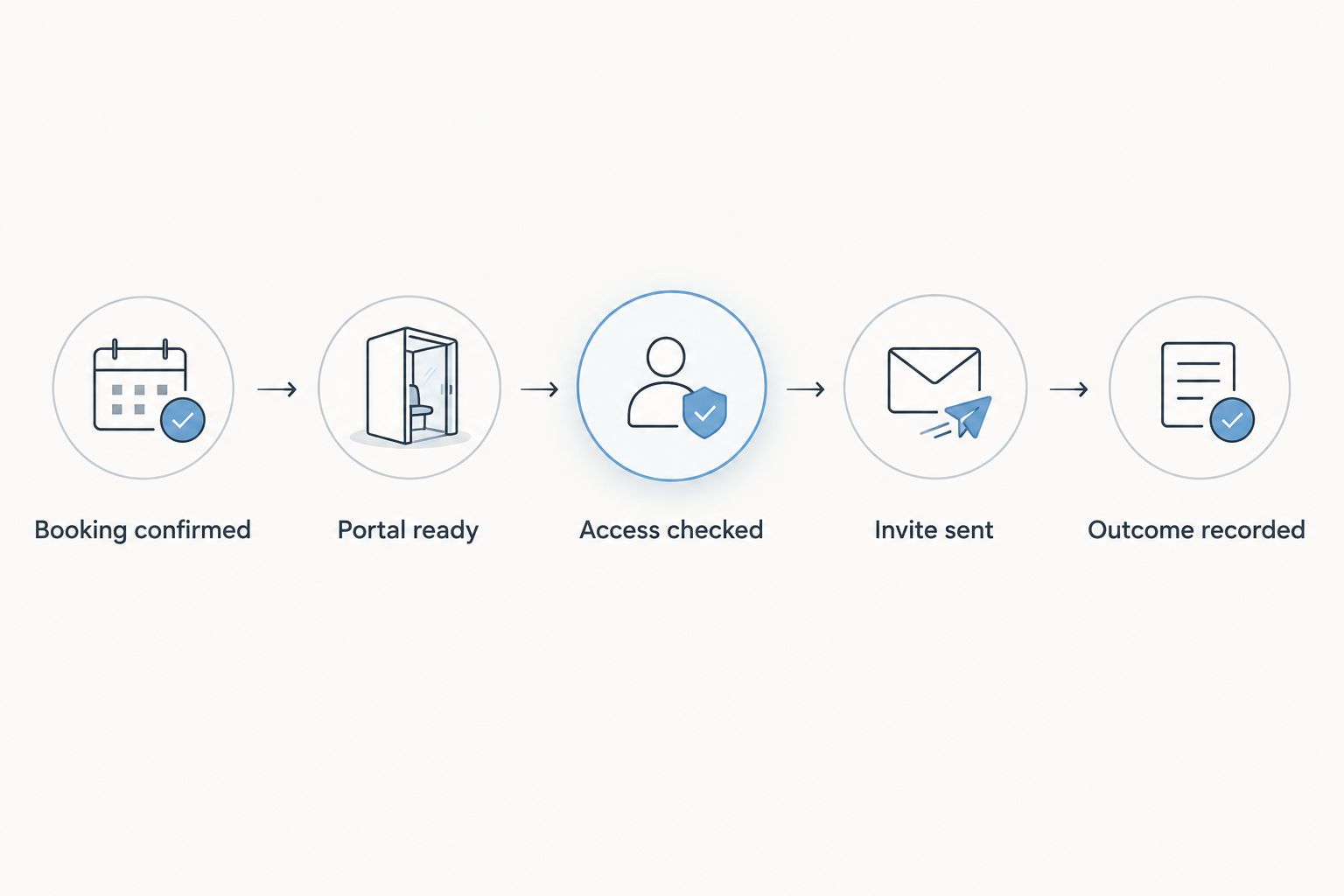
Check access before sending, and record the outcome after the invitation action succeeds.
Workflow testing
Test the conditions that should stop the workflow as carefully as the condition that should start it. Receiving an email proves only part of the setup.
Verify the booking-to-portal handoff
Run the valid booking case. Move the test wedding through your defined booking process. Confirm the correct portal and recipient, then check the invitation from the recipient’s perspective.
Run the incomplete booking case. Leave one required booking condition unmet. Confirm that no invitation is issued and that the record enters your review process.
Run the repeated-update case. Edit an already-booked test wedding without changing its eligibility. Confirm that the existing invitation record prevents another initial send.
Test a recipient change. Replace the test contact with another email address you control. Confirm that changing an address does not automatically grant new access without the checks you intended.
Record acceptance criteria. Keep a 2026 test checklist describing what must happen, what must not happen, and who approves changes to the workflow.
Expected result: your workflow passes 3 core test cases—valid booking, incomplete booking, and repeated update—before real clients enter it. Recipient-change testing adds a separate access check.
Inspect the event history as well as the inbox. You need to know which booking event started the workflow, whether access existed before sending, and whether the successful outcome was recorded.
Keep the manual invitation process available until testing is complete. That is a controlled fallback, not a reason to bypass permission checks when an automated step fails.
Invite an approved client added after booking
A second workflow is useful when an authorized participant joins an already-booked wedding. The trigger is the approved participant being added—not the entire wedding becoming booked again.
Confirm that the wedding is already booked and its portal is ready.
Confirm the added contact’s role and approved access scope.
Check whether that recipient already has access or a pending invitation for this wedding.
Send through the supported invitation action, then record the outcome.
Best for: planners who need to onboard an additional approved client contact without resending invitations to everyone else. The advantage is recipient-specific onboarding; the limitation is that permission decisions still require an explicit rule.
Do not automatically treat every new contact as a client. A vendor contact, venue representative, or family member belongs in this workflow only when your access policy authorizes that person.
Troubleshooting
An ordinary booking edit sends another invitation
Check whether the trigger watches every record update rather than a transition into booked. Narrow the trigger and add the wedding-and-recipient invitation check before the send action.
The client receives an email but cannot access the portal
Verify that the workflow issued a supported invitation, not merely a generic email with a portal address. Check the recipient’s authorization and test the link using the invited account rather than your planner login.
The invitation goes to the wrong contact
Inspect the recipient mapping and its connection to the wedding. Correct the source record, review any access already granted, and resend only after confirming the intended recipient.
The invitation arrives before planning material is ready
Move portal preparation ahead of the send step. Require a readiness condition rather than assuming that booking confirmation means the workspace is client-ready.
A retry sends another invitation after a successful send
Check whether the successful action was recorded before the workflow retried. Review invitation history before retrying, and use the system’s supported duplicate controls rather than repeating the whole sequence blindly.
Customize your workflow
Once the invitation works, extend the handoff into a useful first planning session. Give the client a clear task, identify the information you need next, and assign responsibility for reviewing their response.
Keep separate checkpoints for invitation issued, access accepted where that event is supported, and onboarding information received. Those are different outcomes; an invitation alone does not mean the client is ready to start planning.
Rundown connects CRM, client portals, budgets, timelines, and vendor coordination, but your process still needs ownership rules. Decide who checks exceptions and who confirms that shared planning material is ready.
For the rest of 2026, review the workflow whenever your booking requirements or portal access policy changes. Retest the affected conditions before applying the revised process to active weddings.
Start with a connected planning system
Bring CRM, client portals, timelines, budgets, and vendor coordination into your wedding planning workflow.
FAQ
How do I set up an automatic client portal invite after a wedding is booked?
Connect a supported booking-transition trigger to portal readiness, recipient authorization, and a supported invitation action. Add a prior-invitation check and test incomplete bookings and repeated updates before activating the workflow.
Does sending a welcome email automatically give a client portal access?
No, a welcome email alone does not establish authorized portal access. Use the portal system’s supported invitation or access process, then send any accompanying onboarding message.
Can I use Rundown for wedding client onboarding?
Rundown provides CRM, client portals, timelines, budgets, and vendor coordination for professional wedding and event planners. Verify the specific trigger and invitation actions available in your setup before configuring automatic onboarding.
Should I send the portal invite when I send a proposal?
Send the invitation when your defined booking requirements are complete, not simply when a proposal is sent. A proposal is a sales step; portal access should follow your accepted-engagement rule.
How do I stop duplicate portal invitations?
Check invitation or access history for the same wedding and recipient before sending. Trigger onboarding on the booking transition rather than every update to a booked record.
What should I do when a client changes their email address?
Verify the new address and review access tied to the previous address before issuing another invitation. Treat the change as an access update, not a new wedding booking.
What should I test before enabling this workflow in 2026?
Test a valid booking, an incomplete booking, and a repeated update to an already-booked wedding. Also confirm that the invited account sees only the intended portal and planning material.
One last thing
Test portal access while signed out of your planner account. Your own permissions can hide an onboarding failure: a link that works for you does not prove it works for the invited client.
Treat that recipient-side check as part of your 2026 launch checklist. The workflow is ready only when the correct client can enter the correct wedding portal without planner-level access.
Related guides

