
Automatically sync wedding expenses to QuickBooks
Set up QuickBooks wedding expense sync with approval rules, accurate field mapping, and duplicate checks. Keep couple-paid purchases out of your business books.
Featured

Instead of copying every paid wedding expense into QuickBooks, configure a verified connection to send approved business expenses from your planning records to your books. A reliable quickbooks wedding expense sync needs clear ownership, correct accounting fields, and duplicate protection before you switch it on.
TL;DR
QuickBooks wedding expense sync should send approved business expenses, not every item in a couple’s wedding budget.
Rundown connects planning operations; confirm connector support before automating transfers to QuickBooks.
Use an Expense for a paid purchase and a Bill for an unpaid supplier obligation.
Keep source transaction IDs so retries and edits do not create duplicate expenses.
Why this matters
Your wedding budget and your business books answer different questions. The budget tracks what the wedding requires; QuickBooks records the transactions that belong to your planning business. A florist payment made directly by the couple belongs in the wedding budget, but it is not automatically your business expense.
Rundown wedding planning software is best for professional planners who want CRM, client portals, timelines, budgets, and vendor coordination in one system. Use Rundown to keep the planning context together, then define which transactions belong in QuickBooks before connecting the records.
For your 2026 workflow, the useful distinction is not manual versus automatic. It is approved versus unapproved. Automating a transaction with the wrong payer or account simply repeats the mistake without asking you.
This guide describes the transfer rules and checks to configure in a supported connector. It does not assume a native Rundown–QuickBooks expense integration or a particular automation platform.
Before you start
Get the right access. You need access to your planning expense records, the correct QuickBooks company, and permission to create the intended accounting transactions. If someone else handles your books, agree on the categories and payment accounts with that person first.
Verify the connection before building it. Confirm that your available connector can read the source expenses and create the required QuickBooks transaction. Automatic updates also require a way to find the existing destination record. Stop at this gate if the connection cannot support your intended action.
Separate business money from couple-paid money. Identify the payer, payment status, source transaction ID, and wedding reference. The non-obvious trap is treating a complete wedding budget as a list of your business expenses; reimbursements and client funds need an accountant-approved treatment.
Do not build around an assumed button or integration listing. Connector labels and supported actions differ, so use the controls actually available in your account. The QuickBooks expense-entry labels identified below refer to the accounting record, not promised fields in a connector.
Expense scope
Start with one direction: approved source records into QuickBooks. Leave accounting changes under the control of the person responsible for your books rather than attempting a two-way sync immediately.
Choose the accounting record
A paid purchase and an unpaid supplier obligation are not interchangeable. Select the record type based on what happened financially, not on whether the planning budget calls everything an expense.
Expense
Best for: A business purchase already paid
Advantage: Records the purchase against its payment account
Limitation: Does not represent an unpaid supplier obligation
Bill
Best for: A supplier amount your business owes but has not paid
Advantage: Keeps the obligation separate from its eventual payment
Limitation: Requires a bill-payment workflow; creating an Expense as well can double-count the purchase
Use a QuickBooks Expense only when the source record represents a paid business purchase. An approved estimate, a couple-paid purchase, and an unpaid vendor bill should not pass through the same expense-creation rule.
Write down which transactions belong to your planning business. Include the payer and the reason the purchase belongs in your books.
Define the approval condition separately from payment status. A planned purchase is not a paid purchase just because you approved its budget.
Exclude couple-paid items from automatic business-expense creation.
Give reimbursements, refunds, and payments made with client funds their own review path rather than forcing them into the initial rule.
Expected result: You have a written inclusion rule that identifies paid, approved business purchases and excludes other wedding-budget entries.
Define the handoff
Build your 2026 expense process around these stages: Business purchase, Approval, Accounting transfer, and Reconciliation. Approval is the gate; reconciliation confirms the result.
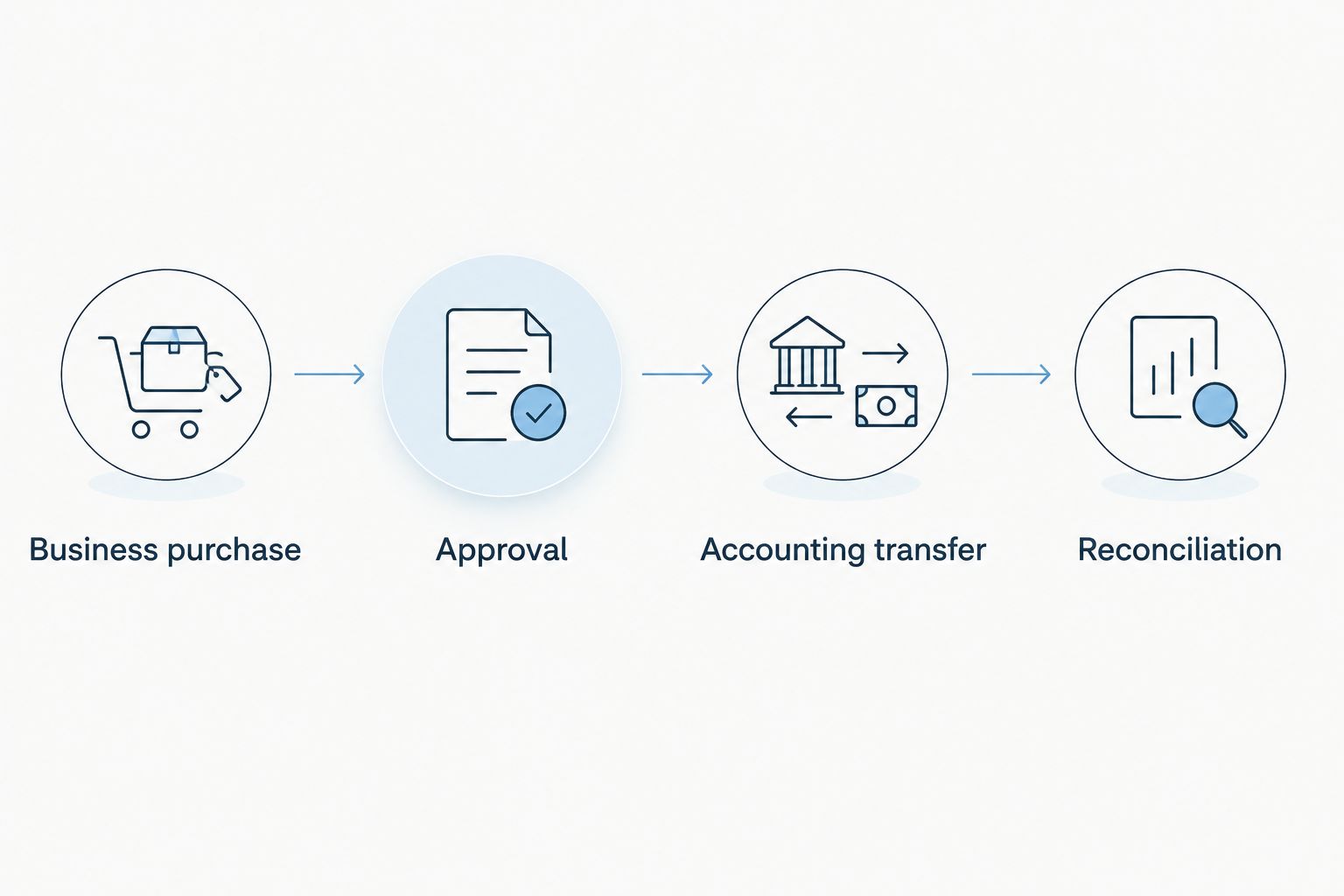
Approval decides what transfers; reconciliation checks what reached the books.
Assign responsibility at each stage. Your planning assistant can collect a receipt without choosing its accounting category, and your bookkeeper can review the accounting record without owning the wedding timeline. Keep those responsibilities explicit.
Trigger and field mapping
The trigger should identify a transaction ready for accounting, not merely a record that changed. Updating a vendor note or correcting a wedding name should not create a new expense.
Configure the source trigger
Select the supported source event that identifies a new eligible expense. If the connector only detects general record changes, add conditions that restrict which changes proceed.
Require approval, a paid status, and business ownership before the transfer action runs.
Require a stable source transaction ID. Use the expense record’s identifier, not the vendor name or wedding date.
Check for a previously stored QuickBooks transaction ID or another supported duplicate lookup before creating anything.
Route incomplete records to review instead of supplying guessed values.
Expected result: A new eligible expense reaches the accounting action once. An unapproved record, a couple-paid item, or an already-transferred record stops before creation.
Map the accounting fields
In QuickBooks expense entry, labels include Payee, Payment account, Payment date, Category, and Amount. Use the corresponding supported connector fields; do not assume their names or available values match the QuickBooks screen exactly.
Supplier identity
QuickBooks destination: Payee
Check before sending: Match the intended supplier rather than relying on a similar name
Account used to pay
QuickBooks destination: Payment account
Check before sending: Select the actual business bank or card account
Date paid
QuickBooks destination: Payment date
Check before sending: Use the transaction date, not the wedding date
Accountant-approved classification
QuickBooks destination: Category
Check before sending: Use the agreed bookkeeping category, not a wedding-budget heading
Actual purchase amount
QuickBooks destination: Amount
Check before sending: Keep estimates and actual payments separate
Wedding and source references
QuickBooks destination: A supported description or reference field
Check before sending: Preserve enough context to trace the purchase
Map each required destination field using an approved source value or an explicit mapping rule.
Resolve vendor identities before creating the accounting transaction. Do not automatically create a new supplier because a name includes a spelling variation.
Keep wedding-budget categories separate from accounting categories. A heading such as decor describes the event; your bookkeeping classification serves a different purpose.
Confirm currency and tax treatment with your bookkeeper. Reject records the mapping cannot handle correctly.
Preserve the source ID in a supported reference field or a separate transfer log.
Expected result: The preview or test payload describes a recognizable business purchase with the correct supplier, account, date, classification, and amount.
Duplicate control and testing
A connector can retry after an interruption. Your workflow must distinguish a purchase that failed to transfer from a purchase that transferred successfully but did not receive a successful response.
Store the transfer result
Create the QuickBooks transaction only after the eligibility and duplicate checks pass.
Capture the destination transaction ID returned by the supported action.
Store that ID alongside the source ID in a persistent transfer log or supported source field.
Record success only after you have the destination identifier. Keep an unresolved attempt visible for review.
Before retrying an uncertain attempt, check whether the transaction already exists in QuickBooks.
Expected result: Each transferred source expense points to its accounting record. A retry checks that relationship instead of blindly creating another expense.
Test before enabling unattended transfers
Start with 1 approved expense record whose supplier, date, amount, and payment account you can verify. Treat this as a controlled bookkeeping test, not a reason to create disposable transactions in live books.
Run 3 test cases: an eligible expense, an ineligible expense, and a repeat of the eligible expense. The first should transfer, the second should stop, and the third should not create another purchase.
Inspect the resulting QuickBooks record against the source and receipt.
Confirm that the wedding reference survives the transfer.
Check the stored source-to-destination relationship.
Test a missing required value and confirm that the record goes to review.
Ask the person responsible for your 2026 books to approve the mapping before enabling unattended runs.
Expected result: You have verified correct creation, exclusion, duplicate prevention, and a visible failure path.
Expense transfers and client invoicing need separate accounting rules. Use the Rundown–QuickBooks wedding invoicing guide when designing the income side of the workflow; do not reuse an expense action for client payments.
Sync changes to an existing expense
A second workflow is useful when an approved source expense changes after its first transfer. Build it only if the connector supports finding and updating the existing QuickBooks transaction.
An edit should update the linked record or request review—not create another expense. Keep financial corrections separate from harmless planning changes.
Detect changes to the approved fields you intend to sync, rather than every source edit.
Retrieve the stored QuickBooks transaction ID.
Send nonfinancial context changes only when the connector supports the intended destination field.
Route changes to the amount, payment account, date, or accounting category to your bookkeeper when they affect reconciled transactions or closed periods.
If the destination ID is missing, investigate the original transfer rather than treating the edit as a new purchase.
Expected result: A supported change reaches the existing record, while accounting-sensitive corrections remain under human control.
This approach gives you automation with a defined boundary. The benefit is less repeat entry; the limitation is that refunds, reconciliation-sensitive changes, and exceptions still require accounting judgment.
Troubleshooting
The same expense appears twice
Pause creation for the affected record. Compare the source ID, destination IDs, and transfer history, then have your bookkeeper resolve the duplicate according to your accounting process. Add or repair the duplicate lookup before restarting; matching only by supplier and amount can confuse separate purchases.
The transaction uses the wrong payment account
Check the mapping between the source payment method and the QuickBooks account. A generic payment label does not identify which business card or bank account paid. Require an explicit match and send unknown payment methods to review.
A couple-paid purchase reaches your business books
Your eligibility filter is missing the payer distinction or accepting an ambiguous value. Stop that record type, correct the rule, and have your bookkeeper review the affected entry. Do not solve this by changing the accounting category alone.
A supplier is missing or duplicated
Check the connector’s supplier lookup and the source naming convention. Resolve the intended supplier before retrying. Keep a persistent supplier mapping when the connector supports it instead of creating a new payee for every variation.
Transfers stop after working correctly
Inspect the connector’s recorded error before rerunning transactions. Restore authorization if access has expired, correct invalid mappings, or restore the required permission. Then check uncertain attempts for existing QuickBooks records before retrying them.
Customize your workflow
Use 2 review checkpoints in your 2026 process: approval before transfer and reconciliation after transfer. The first protects record quality; the second checks that the books reflect what actually happened.
Rundown wedding planning software keeps CRM, client portals, timelines, budgets, and vendor coordination together. That planning context supports a clearer accounting handoff, but it does not remove the need to verify connector capabilities or decide how a transaction belongs in your books.
Expand the workflow only after the core transfer passes its tests. Add receipt handling if the connection supports it, define an exception owner, and document how to pause transfers during accounting corrections. Keep client payment tracking separate from supplier expense creation.
Start with connected planning records
Keep CRM, budgets, vendor coordination, and timelines together before configuring your accounting handoff.
FAQ
What is the safest way to set up QuickBooks wedding expense sync?
Send only approved, paid business purchases through a verified connector, and check for an existing transaction before creating one. Test field mapping, exclusions, and retries before enabling unattended transfers.
Does Rundown automatically sync wedding expenses to QuickBooks?
Confirm supported expense-transfer capabilities in your available connection before configuring automation. Rundown provides CRM, client portals, timelines, budgets, and vendor coordination; those features alone do not establish a native QuickBooks expense sync.
Should every item in a wedding budget become a QuickBooks expense?
No, a wedding-budget item is not automatically an expense of your planning business. Separate couple-paid purchases, estimates, unpaid obligations, and your own paid business purchases before transferring records.
Should I create a QuickBooks Expense or a Bill for a vendor purchase?
Use an Expense for a purchase already paid and a Bill for an unpaid supplier obligation. Do not create both for the same purchase without an accountant-approved reason and workflow.
How do I stop an expense sync from creating duplicates?
Keep a stable source transaction ID and store the QuickBooks transaction ID after successful creation. Check that relationship before retries and investigate attempts whose outcome is uncertain.
Can I automatically update an expense after it reaches QuickBooks?
Only configure automatic updates when the connector can find and update the existing transaction. Send changes affecting reconciled records or closed accounting periods to your bookkeeper rather than overwriting them automatically.
What should I check when an expense transfer fails?
Read the connector error and verify authorization, required fields, supplier mapping, and payment-account mapping. Before retrying, check whether the original attempt already created the QuickBooks transaction.
One last thing
The wedding date is not the expense date. A purchase for a 2026 wedding belongs on its actual transaction date, even when your planning records organize everything around the event.
Keep the wedding reference for context and the payment date for accounting. That distinction makes a purchase traceable without changing when it happened.
Related guides

