Can event planner software sync with Google Calendar?
Can event planner software sync with Google Calendar? Yes, with a supported connection. Compare sync types and test edits, cancellations, and privacy first.
Featured
Yes, event planner software can sync with Google Calendar when the software supports a compatible calendar connection. Check whether that connection sends appointments one way, allows changes in both systems, or only provides a calendar feed; those are different workflows. A calendar connection also does not automatically transfer your budgets, vendor records, or full wedding runsheet.
TL;DR
Can event planner software sync with Google Calendar? Yes, with a supported connection; verify its direction and update behavior.
Google Calendar imports and calendar subscriptions are not the same as two-way sync.
Rundown is best for professional planners seeking connected CRM, client portals, budgets, timelines, and vendor coordination.
Test appointment changes, cancellations, time zones, and sharing before connecting live weddings.
For the handoff between appointments and event execution, read the Google Calendar to synced wedding timelines workflow. The key decision is which system owns each date—not simply whether both systems display it.
Can event planner software sync with Google Calendar?
Yes, but the connection type determines what actually stays synchronized. In 2026, evaluate the documented behavior of the specific software and connection you intend to use. A calendar icon or an export button alone does not establish two-way editing.
Google Calendar supports importing calendar files and subscribing to calendars by URL. Those capabilities are distinct from a software integration that creates and updates events through an authorized connection.
One-way integration
What it does: Sends supported appointment information from a source system to a destination calendar
Best for: Planners who edit appointments in one system
Main advantage: Keeps a clear editing source
Main limitation: Changes made in the destination do not flow back through that connection
Two-way integration
What it does: Exchanges supported changes between connected systems
Best for: Planners who need to edit appointments in either system
Main advantage: Supports editing on both sides
Main limitation: Field coverage and conflict handling depend on the integration
Calendar subscription
What it does: Displays events from a published calendar feed
Best for: Planners who need a reference calendar
Main advantage: Provides a view of another calendar
Main limitation: Does not provide two-way editing of source events
Calendar file import
What it does: Copies events from a calendar file
Best for: Planners transferring a fixed schedule
Main advantage: Moves a snapshot of appointments
Main limitation: Later source changes do not update the imported copy
Treat these as connection models, not promises about a particular product. Ask the provider which model it supports, which appointment fields transfer, and what happens after an appointment changes.
Why this matters
If you manage roughly 10–30 weddings per year, the calendar problem is not just remembering wedding dates. You also need to coordinate consultations, venue visits, tastings, rehearsals, vendor calls, and your own working time.
A connection is useful only when you know what a displayed appointment means. Is it the latest version? Who owns the edit? Does changing the consultation in your calendar also change the client-facing appointment?
Use Google Calendar for visibility and availability; keep the detailed event plan in the system responsible for running the wedding. That distinction keeps a rescheduled meeting from becoming an accidental rewrite of the final timeline.
One-way sync: best for a single editing source
A one-way connection sends information in one direction. For example, a supported integration can publish appointments from planning software to Google Calendar while leaving the planning software responsible for edits.
The benefit is clear ownership. You make the change in the source, then check that the destination reflects it. The trade-off is that editing the Google Calendar copy does not update the source through that one-way connection.
Before adopting this model, establish a simple rule: appointment edits happen in the source system. If you accept a new meeting time while looking at Google Calendar, return to that source to make the change.
For your 2026 workflow, test whether destination-side edits remain, get overwritten, or create a separate event. Do not assume every one-way integration handles those edits identically.
Choose one-way sync when you want a reference calendar and can commit to one place for appointment changes.
Two-way sync: best for editing in either system
A two-way connection exchanges supported changes between systems. The important word is supported: an integration can exchange dates and titles without handling every attendee, description, attachment, or event setting.
This model suits planners who genuinely need to edit appointments from either calendar. Its limitation is added coordination: you must understand what happens when both sides change the same appointment.
Ask how the connection handles cancellations, recurring appointments, and conflicting edits. Also verify whether deleting an appointment removes it from both systems or only from the place where you deleted it.
Choose two-way sync only after testing the exact changes you make during a normal planning week. A connection that handles new appointments but misses your cancellation workflow is not a complete fit.
Calendar subscriptions: best for reference viewing
A calendar subscription lets Google Calendar display events from a published feed. It is a viewing connection, not permission to edit the underlying planning record from Google Calendar.
The advantage is a useful reference layer beside your other calendars. The limitation is that refreshed information depends on the feed and the receiving calendar's refresh behavior; do not treat a subscription as an immediate update channel.
For 2026 wedding-day operations, avoid making a subscribed calendar the only place people check last-minute changes. Identify the authoritative runsheet and tell your team where approved changes appear.
Choose a subscription when you need visibility, not shared editing. Confirm that the feed includes only information its intended viewers should see.
Calendar imports: best for a fixed snapshot
Importing a calendar file copies its events into a calendar. That is a transfer, not an ongoing connection to the original planning system.
An import can help move an existing schedule or provide a fixed reference. Its weakness is maintenance: later changes to the source are not automatically reflected in the imported events.
Be careful with repeated imports. Check how the destination handles existing appointments before importing the same schedule again, rather than assuming it will reconcile changes for you.
Choose an import for a deliberate snapshot, not a schedule that must stay current. Mark who is responsible for updating or replacing that snapshot.
Why Google Calendar sync behavior varies
Calendar sync behavior depends on the connection you choose and the information it supports. Check these factors before committing your live event schedule:
Connection direction: One-way publishing and two-way editing create different responsibilities.
Supported fields: Confirm whether titles, start times, end times, locations, descriptions, and attendees transfer.
Update mechanism: A published feed, file import, and authorized integration do not update in the same way.
Account permissions: The connected account needs the relevant access to the calendars involved.
Event handling: Changes, deletions, recurring appointments, and conflicting edits need explicit rules.
Time zones: Check how each system stores and displays appointments, especially for destination weddings.
Do not evaluate a connection solely by whether the first appointment appears. The better test is whether it remains correct after the appointment changes.
How do I test Google Calendar sync before using it?
Use a separate test calendar and fictional appointments. Keep client names, private notes, and live wedding details out of the trial.
For a 2026 setup check, create 3 test appointments: a consultation, a venue visit, and a rehearsal. Give each a recognizable title, a start and end time, and a generic location so you can inspect the transferred fields.
Choose the source. Decide which system owns appointment creation and edits. Write that rule down before connecting anything.
Connect the calendar. Follow the provider's current instructions. Check the account and destination calendar before granting access.
Create appointments. Add your fictional appointments in the source system. Inspect the title, date, time, duration, location, and description in Google Calendar.
Change appointments. Move a start time and change a location. For a claimed two-way connection, repeat the test from Google Calendar.
Cancel appointments. Delete or cancel a test appointment and inspect both systems. Record whether cancellation notices are sent.
Check access. View the calendar using the access level intended for an assistant or collaborator. Confirm what that person can read and edit.
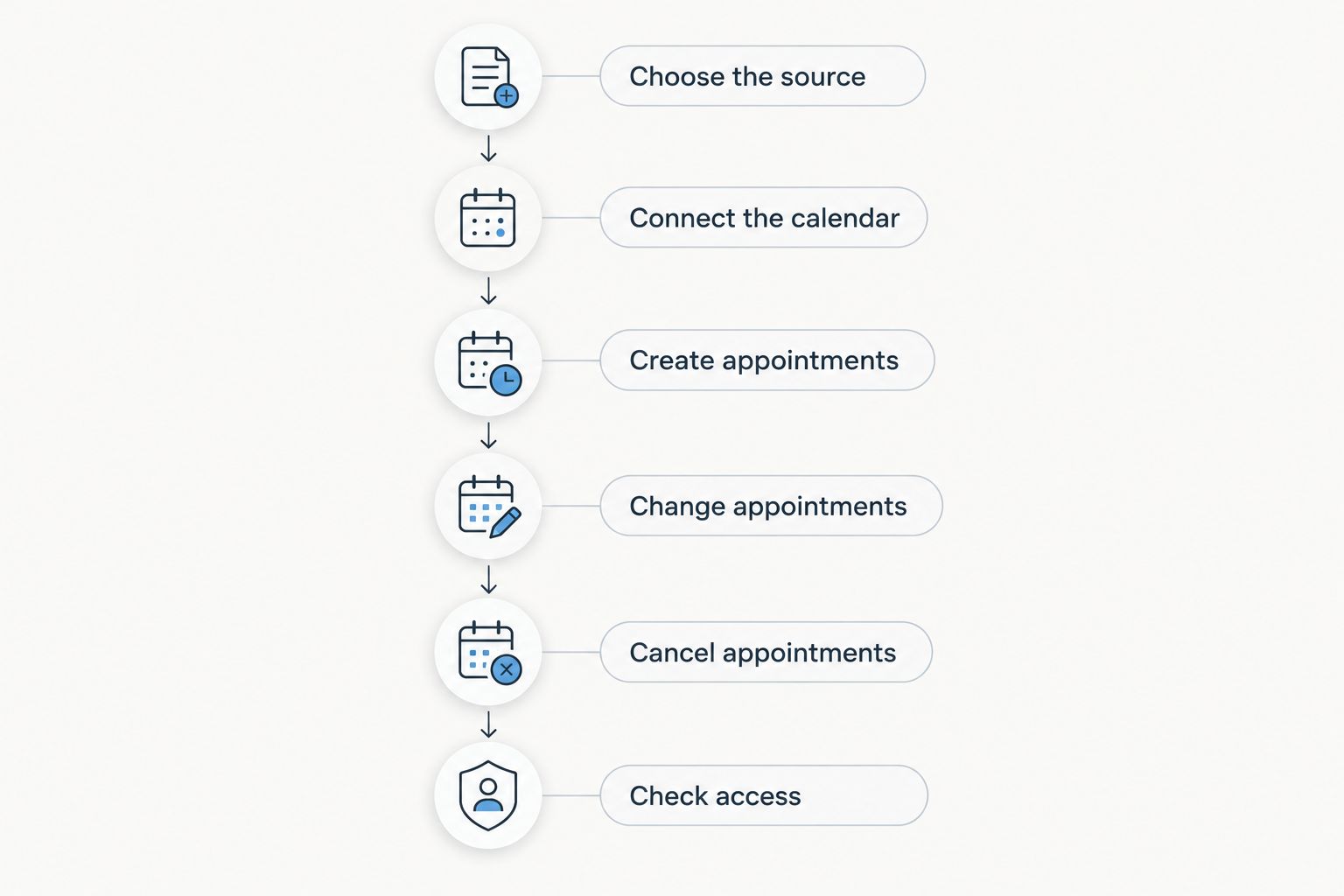
Test changes and cancellations, not just the first appointment transfer.
Your acceptance rule should be specific: the fields you need appear correctly, edits follow the documented direction, cancellations behave as expected, and viewers receive the intended access. If any check fails, resolve it before connecting live weddings.
Where does connected planning software fit?
Calendar sync answers an appointment question. It does not replace the CRM that tracks inquiries, the client portal that organizes collaboration, the budget that tracks spending, or the vendor coordination behind the wedding.
Rundown is best for professional wedding and event planners who want CRM, client portals, timelines, budgets, and vendor coordination in one system. That connected scope matters when you want the planning record to carry from first inquiry to last dance, rather than treating each calendar appointment as a separate project.
Use Rundown to evaluate that broader workflow, then verify the calendar connection separately. Assessing the planning system's scope and assessing a specific integration are different decisions.
The practical limitation remains the same for any connected system: it still needs clear ownership rules. Decide who updates the appointment, who approves the runsheet, and which information belongs in the client portal rather than a shared calendar.
Start your connected planning workflow
Start with the free plan and review CRM, client portals, timelines, budgets, and vendor coordination.
Can Google Calendar replace my wedding runsheet?
Google Calendar is not a replacement for a detailed wedding runsheet. A runsheet needs operational instructions: who is responsible, where the handoff happens, which vendor needs the update, and what follows a schedule change.
Keep appointments and major milestones visible in the calendar. Keep the execution details in the approved timeline, and tell every collaborator where to find that authoritative version.
Will rescheduling a meeting update the client portal?
Rescheduling a meeting updates the client portal only if the software explicitly connects those records and supports that behavior. A calendar event changing successfully does not establish that the portal, reminders, or other records changed too.
Test the client-facing view separately. Inspect the appointment, its displayed time zone, and any notification behavior before relying on the connection for live client communication.
Can I share appointments without sharing private planning notes?
You can separate appointment visibility from private planning information by controlling calendar access and limiting what enters shared event fields. Check the description as carefully as the title; copied internal notes belong in neither a client-facing appointment nor a vendor-facing calendar.
Use a plain appointment description containing only what recipients need. Keep internal budget decisions, CRM notes, and sensitive vendor discussions in their appropriate planning records.
FAQ
Can event planner software sync with Google Calendar in 2026?
Yes, event planner software can sync with Google Calendar when it supports a compatible connection. Confirm whether the connection is one-way, two-way, a calendar subscription, or a file import before relying on it.
What's the difference between calendar sync and a calendar import?
Calendar sync maintains a connection according to the integration's supported behavior; a calendar import copies a snapshot. Later source changes do not automatically update events copied through a file import.
Can I edit a synced appointment from Google Calendar?
Editing the source appointment from Google Calendar requires a connection that supports changes in that direction. A one-way connection or subscribed calendar does not provide two-way editing of the source record.
Will my wedding budget sync to Google Calendar too?
Appointment sync does not automatically transfer your wedding budget. Keep budget records in your planning system and inspect which fields the calendar connection actually publishes.
How do I stop private client notes appearing on a shared calendar?
Keep private notes out of fields published to the calendar and restrict calendar access. Review a test event from the intended viewer's account before sharing live appointments.
Does Rundown include more than wedding timelines?
Rundown wedding planning software includes CRM, client portals, timelines, budgets, and vendor coordination. Evaluate those connected planning functions separately from the requirements of a particular calendar integration.
What should I check before connecting destination wedding appointments?
Check the event's time zone and how the appointment appears in each connected system. Test a fictional appointment first and make the intended local time explicit in your planning instructions.
One last thing
A visible appointment is not proof of a working sync. The useful test is what happens after you move it, cancel it, or change who can see it.
Before connecting your 2026 wedding calendar, write one sentence your assistant can follow: where appointment edits happen and where the final runsheet lives. That rule gives the connection a job—and keeps your planning workflow understandable when the schedule changes.
Related guides

