
How do I migrate client data to new wedding planner software?
Migrate client data to new wedding planner software safely. Follow export, field mapping, testing, and access checks to protect budgets, documents, and timelines.
Featured

Migrate client data to new wedding planner software by exporting your existing records, mapping them to the new system, testing a small batch, and checking the results before switching your live workflow. Preserve a separate backup, and verify client permissions, budget balances, vendor assignments, and timeline details before inviting anyone into the new portal. Moving contact information does not automatically move documents, conversation history, or relationships between records.
TL;DR
How do I migrate client data to new wedding planner software? Export, map, test, reconcile, then switch.
Rundown suits professional wedding planners who want CRM, client portals, budgets, timelines, and vendor coordination together.
Test a complete wedding workflow before moving every active client record.
Keep your original files until documents, balances, permissions, and vendor assignments pass your checks.
How do I migrate client data to new wedding planner software?
Use the following sequence for your 2026 migration. Finish the checks at each stage before moving to the next. A successful contact import is not proof that the wedding itself is ready to run.
Inventory records. List inquiries, booked clients, weddings, vendors, budgets, timelines, documents, and communication history. Separate active work from completed events.
Export and back up. Save the exports your current system provides, plus separate copies of important documents. Keep an untouched source copy outside the migration workspace.
Map fields. Match each source field to its destination. Confirm how the new system handles event relationships, custom fields, attachments, and access permissions before importing.
Test a wedding. Use one complete wedding as your pilot, with client details, vendor contacts, budget entries, documents, and timeline information. Compare the result against your source records.
Approve the switch. Transfer the remaining records, reconcile changes made during the move, and announce where future updates belong. Invite clients only after checking their access.
Rundown is best for professional wedding planners who want CRM, budgets, client portals, timelines, and vendor coordination in one connected system. If you are considering Rundown, apply the same migration checks before moving your live events; a connected workflow still needs accurate source data.
Why this matters
For an independent planner handling 10–30 weddings per year, migration is an operational handoff, not just an administrative task. A client email address can transfer correctly while the attached proposal, vendor assignment, or final runsheet stays behind.
Your acceptance test should answer a practical question: can you open a wedding and confidently identify the next action, the responsible person, and the current approved details? If not, keep that event on its existing workflow until you resolve the gaps.
Decide what moves and what stays in the archive
Start your 2026 migration with a written scope. Moving everything creates more records to check; moving too little leaves you dependent on the old system for everyday decisions.
Separate your records into active operations and retained history:
Active inquiries: contact details, requested event date, service interest, inquiry status, and the next follow-up.
Booked weddings: client contacts, event details, planning stage, current proposals, and agreed responsibilities.
Vendor coordination: company contacts, event assignments, confirmed arrangements, and outstanding questions.
Budgets: categories, estimates, commitments, recorded payments, and supporting documents.
Timelines and runsheets: current versions, locations, responsible contacts, and approved timing.
Completed events: signed documents and historical records you need to retain, without presenting them as active work.
Bring across only the personal information you need for the work and your applicable retention obligations. Do not copy sensitive notes into client-visible fields merely because those fields are convenient.
An archive and a live workspace serve different purposes. Keep historical context accessible, but make the new workspace clear about what needs action now. Record where archived documents live so you do not have to reconstruct that decision later.
Choose a transfer method that matches your records
There is no universal import format for wedding planner software. Confirm the destination system’s current transfer options before preparing files, and distinguish a contact import from a full event migration.
Supported bulk import
Best for: Structured records that match an accepted import format
Advantage: Transfers a prepared batch together
Limitation: Requires field mapping and checks for unsupported information
Manual rebuilding
Best for: Records that need deliberate cleanup or restructuring
Advantage: Lets you review information as you enter it
Limitation: Requires individual entry and careful comparison
Phased migration
Best for: Active weddings that should move at different operational points
Advantage: Keeps each event on a controlled transition schedule
Limitation: Requires a clear record of which system owns each wedding
Choose the method by record type, not by convenience alone. Contacts can follow one route while signed documents and complex runsheets follow another. That is acceptable if you maintain a migration register and check the completed event as a whole.
Do not assume a migration service, attachment importer, or historical-message transfer exists. Ask the destination provider exactly what transfers, what remains separate, and what needs rebuilding.
Clean and map the data before importing
A field map is a simple reference that shows where each piece of information belongs. Include the source field, destination field, expected format, visibility, and any transformation you will apply.
Keep people, companies, and weddings distinct
A couple, a wedding, and a vendor company are different records, even when your current spreadsheet puts them on the same row. Preserve those distinctions when the destination supports them.
Match records using reliable identifiers from your source system where possible. Do not merge contacts solely because their names match; check the relevant email address, company, and event relationship first.
Standardize dates and statuses
For 2026 events, spell out month names in your working checklist where a numeric date would be ambiguous. Confirm the required import format separately, and check event time zones wherever timing matters.
Map inquiry and planning statuses deliberately. An archived inquiry should not become an active follow-up, and a completed wedding should not appear in your current planning queue.
Review notes and custom fields
Separate internal planning notes from information a client or vendor should see. Review dietary details, family arrangements, private contact information, and financial notes before assigning visibility.
If a destination field does not exist, decide whether to create an appropriate field, retain the information in an accessible document, or omit it from the live workspace. Never force unrelated information into a field just to make the import pass.
Test one complete wedding before the full transfer
Use 1 wedding as a recommended pilot batch, not as a promise that every migration needs the same amount of testing. Select an event that exercises the records you actually use: clients, vendors, budgets, documents, and a working timeline.
Keep invitations and outbound messages off during testing wherever the destination provides that control. If it does not, establish a safe test procedure with the provider before importing real client records.
Check the pilot in this order:
Client details: names, contact information, event date, venue, and planning status match the source.
Event relationships: contacts and vendors belong to the correct wedding.
Budget records: categories, entries, payment statuses, and totals match the source.
Documents: important files open, and the correct versions are attached or accessible.
Timeline details: timing, locations, assignments, and outstanding decisions remain intact.
Permissions: the intended person sees the intended information, and private notes stay private.
Compare totals and record counts against your own exports. A matching total is a useful check, but it does not prove every individual entry is correct; inspect the underlying records too.
Use 3 sign-off checks before approving the pilot: record completeness, financial reconciliation, and access control. Treat these as acceptance criteria for your migration, not as a substitute for reviewing the actual wedding workflow.
Preserve documents, budgets, and timeline versions
A migration needs more than clean CRM fields. Signed agreements, approved proposals, and current runsheets carry decisions that contact records alone cannot explain.
Documents need a readable home
Keep original signed files intact. Confirm that each document remains readable and associated with the correct event, whether it becomes an attachment or stays in a separate document repository.
Do not treat an old sharing link as a durable backup. Check access from the new workflow, and record which location holds the original file.
Budgets need line-by-line meaning
Compare budget categories and individual entries, not just the final balance. An estimate, a confirmed commitment, and a recorded payment should remain distinguishable after the move.
Verify supporting documents for entries that need them. Moving wedding budget information also does not replace your accounting records or reconcile your bank activity.
Timelines need an approved version
Identify the latest approved timeline before transferring it. Keep superseded drafts separate so a vendor does not mistake an older runsheet for the current instructions.
Confirm the event date, time zone, locations, contact details, and task ownership after rebuilding or importing the timeline. A visually tidy timeline is not enough; its operational details must match the source.
Switch without running two conflicting systems
For your 2026 changeover, name the authoritative workspace for each event. Temporary overlap is manageable; conflicting instructions are not.
Keep 2 systems only during a controlled transition, with a clear rule about where updates belong. Maintain a short change log for any edits made after your initial export so those changes reach the destination before the switch.
Use this handoff sequence:
Final export: capture the agreed source records and any changes since the pilot.
Validation: reconcile the destination against the final export.
Client access: send access instructions after checking permissions and documents.
Live workspace: tell clients and collaborators where new updates belong.
Read-only archive: stop editing the old workspace where your tools allow it, and retain the records you need.
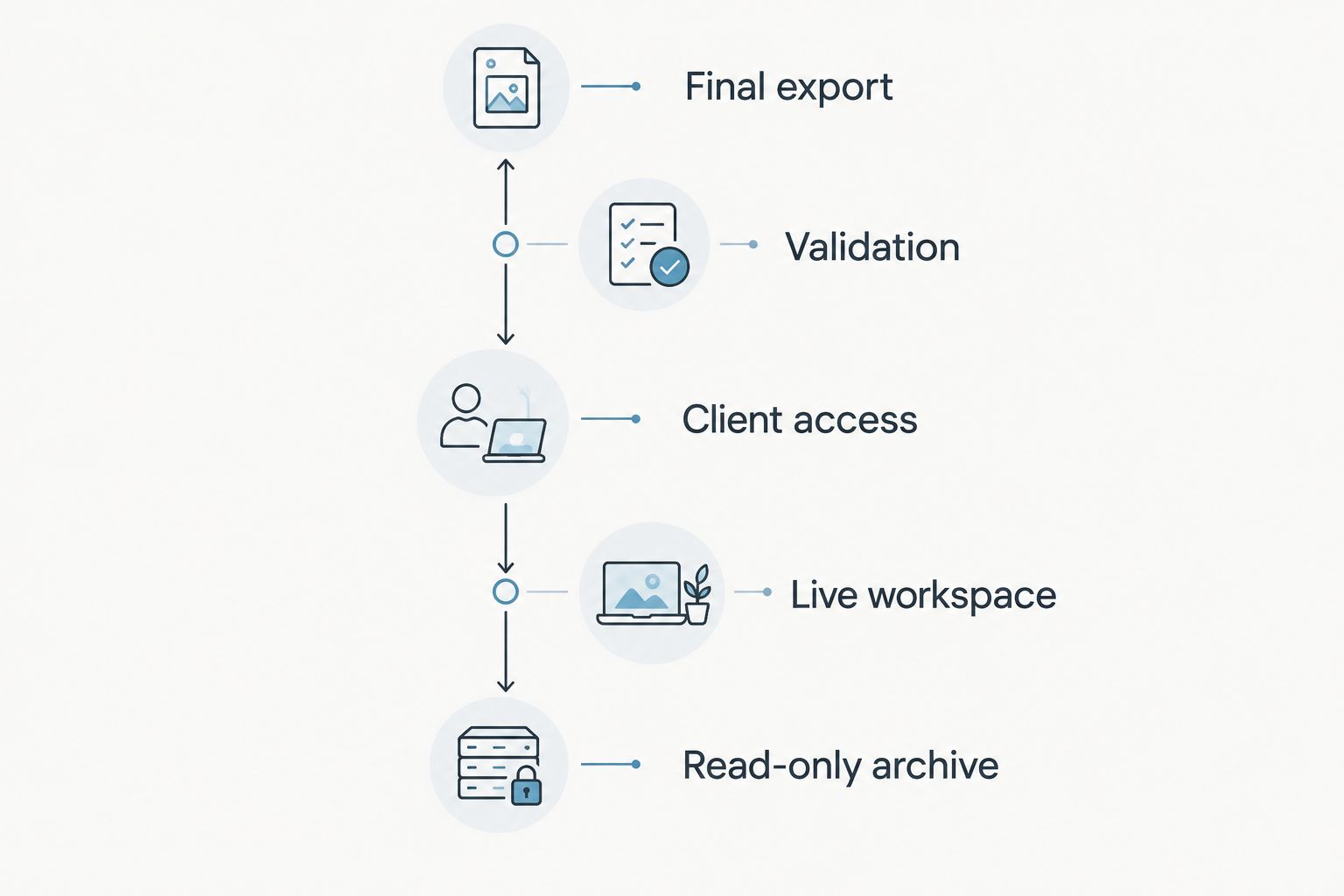
Validate the destination before inviting clients into the new workspace.
Give clients a concise message explaining where they should review documents, submit information, and find the current timeline. Avoid sending multiple competing instructions from the old and new systems.
Before the final handoff, review the wedding planner software setup guide. Migration moves records; setup establishes how you will use them.
Why migration work varies
The amount of migration work depends on what must survive the move, not simply how many clients you have. Build your checklist around these factors:
Record structure: organized fields need different preparation from free-text notes.
Relationships: client, event, and vendor connections require separate validation.
Documents: attached files and signed originals need their own checks.
Financial detail: budget categories, commitments, and payments need reconciliation.
Timeline complexity: assignments, locations, and versions need review.
Permissions: internal notes and shared information need different access rules.
Scope the migration around your actual planning workflow. Do not approve it solely because the destination contains the expected number of contacts.
Can I move active weddings without disrupting clients?
Yes—move active weddings through a controlled handoff, with one authoritative workspace per event. Keep the existing workflow in place until you have checked documents, budgets, timelines, and access in the destination.
For an imminent event, avoid changing systems during final confirmations unless the operational need justifies the disruption. Decide that event’s transfer point explicitly rather than including it automatically in a bulk move.
Do I need to move every old inquiry?
No—move inquiries that support current follow-up or a defined business purpose. Keep historical records separately when appropriate, subject to your retention obligations.
Check consent and communication preferences before activating follow-up workflows. An imported contact is not automatically permission to send a new campaign.
What should I check before inviting clients?
Check access permissions, event assignments, and the current document and timeline versions before inviting clients. Test the client-facing view rather than relying only on your planner view.
Confirm that invitation messages and links point to the intended workspace. Your client’s first experience should explain the new process, not expose unfinished migration work.
FAQ
How do I migrate client data to new wedding planner software?
Export your source records, map the fields, test a complete wedding, and reconcile the results before switching. Preserve original documents and verify client access separately from the contact import.
Can I import my wedding planning spreadsheet directly?
You can import a spreadsheet only if the destination supports its format and fields. Confirm the current requirements, clean the records, and test a batch before transferring the full file.
Will my signed contracts move with my client records?
Do not assume signed contracts move with client records. Verify attachment handling and keep intact copies of the signed originals in an accessible, appropriately restricted location.
Should I invite clients before checking the migration?
No—check event assignments, permissions, documents, budgets, and timelines before inviting clients. Keep outbound invitations off during testing wherever the destination offers that control.
Can I keep my old software during the transition?
Yes—keep the old system during a controlled transition, but designate one authoritative workspace for each event. Record changes made after the export and reconcile them before the final switch.
Is Rundown suitable for a connected wedding planning workflow?
Rundown provides CRM, client portals, timelines, budgets, and vendor coordination for professional wedding and event planners. Verify your transfer requirements before moving live records; the feature set alone does not establish import compatibility.
How do I know the migration is finished?
The migration is finished when your scoped records are reconciled, documents are accessible, permissions are correct, and collaborators know where updates belong. Keep the source archive according to your retention obligations.
One last thing
The strongest final test is an ordinary planning task. Open a migrated wedding and locate the latest approved timeline, a vendor contact, an outstanding budget item, and the next client action without consulting the old workspace.
For your 2026 switch, resolve any missing detail before declaring that event ready. Then start the Rundown free plan to assess its connected wedding planning workflow before committing your live records.
Start with a checked workflow
Assess CRM, client portals, timelines, budgets, and vendor coordination before moving live records.
Related guides

