Can I customize a client portal with my own branding?
Can I customize a client portal with my own branding? Yes, with supported controls. Check logos, domains, emails, and client access before choosing.
Featured

Yes—if your client portal software supports branding controls, you can customize the elements those controls cover, such as your business name, logo, colors, or welcome message. A branded portal does not automatically include a custom web address, branded invitation emails, or removal of the software provider’s name; check each requirement separately before choosing a platform.
TL;DR
Can I customize a client portal with my own branding? Yes, where the software supports the specific changes you need.
Rundown connects wedding-planning CRM, client portals, budgets, timelines, and vendor coordination; evaluate branding controls separately.
Treat logo placement, custom domains, invitation emails, and provider-brand removal as separate requirements.
Test the couple’s experience before inviting clients, including mobile access and visibility of private planning information.
Why this matters
Your client portal is part of your planning service. Couples need to recognize your business, find their next task, and understand which information needs attention—not admire a dashboard while wondering what to do next.
For an independent planner managing 10–30 weddings per year, the useful distinction is between changing appearances and improving the working experience. Choose branding that makes the portal recognizable without making budgets, timelines, or client decisions harder to find.
Rundown brings CRM, client portals, timelines, budgets, and vendor coordination into one system. When evaluating wedding-planning software in 2026, assess that operational fit alongside the specific branding controls you require.
Can I customize a client portal with my own branding?
Yes, when the platform provides the relevant settings. The practical question is not whether a portal is described as customizable, but exactly what you can change and where those changes appear.
Use this sequence to establish what branded means for your business:
List the visible elements you need to change. Include your business name, logo, colors, welcome text, and client-facing labels where relevant.
Separate presentation from identity. A logo inside the portal is different from a custom web address or an invitation sent under your business identity.
Check the complete client journey. Review the invitation, sign-in screen, portal homepage, and any shared documents you expect clients to use.
Confirm the settings on the plan you intend to use. Do not assume a feature shown in a demonstration applies to every account.
Preview the finished result as a client. Judge recognition, readability, and access—not just the appearance of the settings screen.
For your 2026 shortlist, record each requirement as confirmed, unnecessary, or unresolved. An unresolved requirement is a question to answer before you move active clients into the system.
Which level of portal branding do you actually need?
These are evaluation categories, not promises about any particular platform. Use them to explain your requirements clearly during a demonstration or account setup.
Visual branding
Best for: Planners who need a recognizable client workspace
What to verify: Business name, logo placement, color controls, welcome text
Main trade-off: Visual changes alone do not establish a custom domain or sender identity
Client-journey branding
Best for: Planners who want consistency from invitation through ongoing planning
What to verify: Invitation wording, sign-in experience, notifications, shared documents
Main trade-off: Each client-facing surface needs its own check
White-label requirements
Best for: Planners who require control over visible provider identity
What to verify: Provider-name removal, domain settings, email identity, contractual limits
Main trade-off: A white-label description needs a precise explanation of what remains visible
Choose the least complicated approach that meets your client-experience requirements. If your real need is a recognizable welcome screen and clear instructions, do not make an unneeded custom domain the deciding factor.
The reverse also applies. If your business requires provider-brand removal, a logo upload alone does not meet that requirement, regardless of how polished the homepage looks.
Visual branding: make the portal recognizable
Start with recognition. Ask whether the available settings let a couple identify your planning business when they open the portal, especially when they arrive from an email rather than your website.
Check your logo against the actual placement offered by the platform. A detailed mark that works on a proposal cover needs a readability check when displayed in a small navigation area.
Color choices need the same discipline. Keep text, buttons, and status labels readable; decorative consistency should not obscure an overdue decision or make a budget heading difficult to read.
Where editable welcome text is available, explain the portal’s purpose in your own voice. Tell clients where to review planning information and how you want them to raise questions, rather than filling the space with a general greeting.
Client-journey branding: check beyond the homepage
A branded homepage is only one part of the experience. Review the route a couple takes from the initial invitation to the information they need during planning.
Inspect each surface you expect to use:
The invitation and its sender identity.
The sign-in or account-creation screen.
The portal homepage and navigation.
Notifications that bring clients back to the portal.
Shared documents or exports, if your workflow uses them.
Do not assume one branding setting controls all these surfaces. Ask for a demonstration of each required change, and keep your onboarding instructions consistent with what clients will actually see.
For 2026 client onboarding, a clear instruction is more useful than a decorative welcome. Explain where decisions belong and which communication channel you monitor.
White-label requirements: define what must disappear
Treat white-labeling as a checklist, not a yes-or-no label. If removing the platform provider’s identity matters to your business, specify the exact locations you mean.
Ask about the sign-in page, footer, emails, shared documents, and web address separately. Also distinguish a custom domain from a branded email sender; they are different requirements and need separate confirmation.
Avoid making white-labeling a requirement simply because it sounds more professional. Require it when it serves a defined business need, not as a substitute for a usable client portal.
Why client portal customization varies
The scope of customization depends on which parts of the experience the software lets you control. Compare these factors rather than treating all branding features as interchangeable:
Editable surfaces: Establish whether settings apply inside the portal, outside it, or both.
Account and event scope: Check whether a change affects your entire business account or an individual wedding workspace.
Plan access: Confirm that the intended account includes the controls you need.
Domain and sender settings: Evaluate web addresses and email identity separately from visual design.
Client visibility: Check branding alongside permissions so presentation changes do not distract from access requirements.
Keep the evaluation grounded in a sample wedding. A feature list tells you what to investigate; a client-side preview tells you whether the result fits your service.
How do I test a branded portal before inviting couples?
Create 1 sample wedding using fictional client details. Use it to inspect the experience without exposing an active couple’s planning information.
Prepare the workspace
Add representative planning information wherever the software supports it: an upcoming decision, a budget item, and a timeline entry. The purpose is to test a working portal, not an empty page with your logo at the top.
Write a short welcome message if that setting is available. It should explain what clients should do first and where they should send questions.
Preview the invitation
Follow the invitation route using the platform’s supported preview or test process. Check whether the business identity is clear and whether the instructions match the destination.
Pay attention to wording as well as appearance. If your onboarding email calls something a planning hub but the software labels it a client portal, explain the connection rather than making clients guess.
Check mobile access
Inspect 2 client-facing views: a phone-sized screen and a desktop-sized screen. Look for readable headings, clear navigation, and instructions that remain understandable without extra explanation.
Do not judge mobile access from a screenshot. Follow the actual route to the budget or timeline information clients need.
Confirm visibility
Review the workspace from the client’s side using the platform’s supported tools. Check that internal planning notes, vendor information, and financial details follow your intended access rules.
Branding and permissions solve different problems. A recognizable portal still needs an accurate visibility check before it becomes part of your client service.
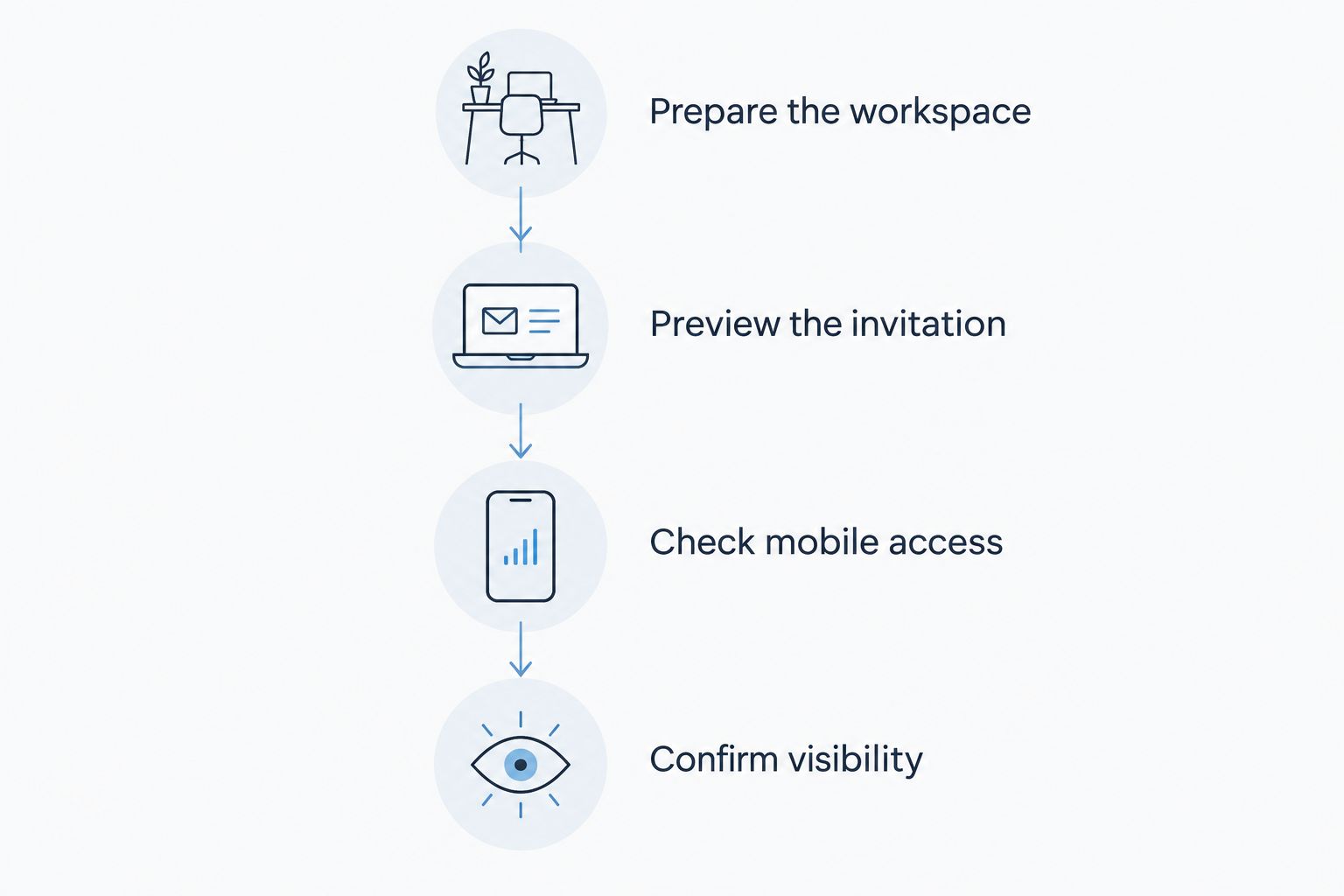
Test the complete client journey before inviting couples into the portal.
Is a branded portal the same as a private portal?
No. Branding controls presentation; permissions control access to information and actions. Test both independently.
For example, a vendor-facing runsheet and a couple’s planning budget serve different purposes. Decide who should see each type of information before sharing access, then verify that the platform supports your intended arrangement.
Use the wedding-planning software client portal comparison to structure the broader evaluation. Keep branding, client usability, and access requirements as separate comparison criteria.
Do I need a custom domain for a professional client portal?
No—a custom domain is not a prerequisite for a clear, recognizable client experience. Decide whether it is a business requirement, then confirm support separately from logo and color settings.
A couple still needs an understandable invitation, a clear next action, and reliable instructions for returning to the portal. A branded address does not replace any of those checks.
For your 2026 setup, prioritize the parts clients must use throughout planning. Add a custom-domain requirement when it supports your service standards, not because it sounds like a necessary finishing touch.
Where Rundown fits in your portal decision
Rundown is built for professional wedding and event planners who want CRM, client portals, timelines, budgets, and vendor coordination in one connected system. That is the operational reason to evaluate it: your portal belongs within the planning workflow, from first inquiry to last dance.
The trade-off is that connected planning features do not, by themselves, answer a branding checklist. Evaluate Rundown’s client portal against your required logo, color, domain, sender, and visibility settings rather than assuming that one capability establishes another.
Start with the workflow you need to run in 2026. Then test whether the client-facing experience matches how you want couples to work with you.
Start with your planning workflow
Explore connected CRM, client portals, timelines, budgets, and vendor coordination.
FAQ
Can I customize a client portal with my own branding?
Yes, if the software supports the specific branding changes you need. Check logo placement, colors, welcome text, domains, emails, and provider-brand removal separately.
Can I put my wedding planning logo on a client portal?
You can add your logo when the platform provides a logo setting. Preview its actual placement and readability before inviting couples.
Does adding my logo remove the software company’s branding?
No—adding your logo does not establish that provider branding can be removed. Confirm removal requirements for the portal, sign-in screen, emails, and shared documents individually.
Can I give each wedding a different portal appearance?
Event-specific customization depends on the platform’s settings. Confirm whether branding applies across your business account or can be changed for an individual wedding.
Will portal branding change what my clients can see?
Branding does not establish client permissions. Review access settings separately and verify the client view before sharing planning information.
Does Rundown provide client portals for wedding planners?
Rundown provides client portals alongside CRM, timelines, budgets, and vendor coordination for professional wedding and event planners. Evaluate the specific branding controls against your requirements before committing to a client-facing setup.
One last thing
Write your portal’s first instruction before choosing its accent color. If you cannot clearly tell a couple what to do next, the presentation is not the main issue.
Make the next action obvious, then make the workspace recognizable. That order keeps branding connected to the planning service clients hired you to deliver.
Related guides

