Can wedding planner software text clients automatically?
Can wedding planner software text clients automatically? Yes, with SMS support. Compare consent, reply handling, integrations, and reminder controls.

Yes—wedding planner software can text clients automatically when it supports SMS directly or connects to a texting service with automated workflows. Email automation and client-portal notifications do not establish SMS support; you also need controls for permission, scheduling, replies, and stopping messages when plans change.
TL;DR
Can wedding planner software text clients automatically? Yes, when the platform supports SMS workflows directly or through an integration.
Choose automatic SMS for short reminders, not sensitive conversations or unapproved timeline changes.
Rundown suits professional planners seeking connected CRM, client portals, timelines, budgets, and vendor coordination; evaluate SMS separately.
Before enabling texts, test recipient selection, permission, timing, replies, and cancellation controls.
Why this matters
When you manage 10–30 weddings per year, the problem is not just sending reminders. It is keeping every reminder tied to the correct couple, appointment, payment status, and version of the timeline.
A reminder that sends after a consultation moves creates another conversation to untangle. A payment nudge that ignores an updated balance creates a worse one. Automate the message only when you can trust the event information behind it.
Keep your channels distinct when evaluating software in 2026. This guide to automating follow-up emails to wedding clients covers a related workflow, but email automation is not proof that a platform can send texts.
Can wedding planner software text clients automatically?
Yes, provided the software has both a way to send SMS and a workflow that determines when to send it. A saved message template alone is not automation, and a notification inside an app is not a text message.
Use this sequence to verify the complete workflow during a demonstration:
Choose a trigger. Ask the provider to demonstrate a reminder tied to a consultation or planning deadline, rather than an isolated test message.
Identify the recipient. Confirm which contact receives the text and how the workflow handles multiple people attached to a wedding.
Inspect the timing. Change the appointment and check whether the pending message changes with it.
Send and reply. Use a test number you control. Find out where the reply appears and who receives responsibility for answering it.
Stop the workflow. Cancel the appointment or withdraw texting permission, then verify that the reminder cannot continue sending.
The test is not whether a platform sends a text. It is whether the correct text follows the correct wedding record through a change.
Compare the available texting approaches
The following comparison describes workflow types, not verified features of particular software brands. Ask each provider to demonstrate the approach it offers before you commit.
Native SMS automation
Best for: Planners prioritizing communication inside their planning software
Practical advantage: Can keep messaging controls close to the wedding record
Main limitation to check: Reply handling, permission records, and workflow controls still need verification
Connected texting service
Best for: Planners who need a separate SMS service linked to planning activity
Practical advantage: Separates the texting service from the planning system
Main limitation to check: Field mapping, connection failures, and status updates need testing
Planner-sent texts
Best for: Sensitive updates and conversations requiring judgment
Practical advantage: Keeps the planner directly in control of wording and timing
Main limitation to check: Requires manual sending and a method for recording decisions
None is automatically the right choice for every message. Use automation for predictable prompts and direct communication for decisions that need context.
Native SMS: check the full conversation
Native SMS means the planning platform provides the texting function within its own product experience. That can simplify where you work, but the label does not tell you whether the feature is outbound-only or supports an ongoing conversation.
For your 2026 evaluation, ask the provider to show a real reply arriving—not just a screenshot of an outgoing reminder. Check whether an assistant can see that reply and whether the message remains attached to the correct client.
Also inspect the sender identity. Ask what number the client sees, whether that identity stays consistent, and how clients recognize your planning business. Do not assume an automated text comes from your existing business mobile number.
Best for: planners who want messaging close to their CRM records. The limitation is that an integrated appearance does not prove complete conversation handling. Test the entire exchange before making it part of your client communication process.
Connected SMS: check what happens between systems
A connected texting workflow passes information between your planning software and a separate messaging service. Evaluate the connection itself, not just the two products at either end.
Ask which event starts the workflow and which fields travel with it. A phone number and a name are not enough if the message also needs an appointment time, wedding identifier, or permission status.
Then test an interruption. Disconnect the service in a test environment, change an appointment, and ask how you would identify anything that failed or remains queued. Establish who checks those exceptions before you rely on the workflow during a busy planning week.
Best for: planners who need a dedicated texting service alongside their planning system. The trade-off is another connection to maintain. Do not adopt it unless you can explain how updates, failures, and replies return to the working client record.
What changes how automatic texting works?
The useful distinction is not simply automatic versus manual. These factors determine whether a texting workflow fits your planning process:
Trigger quality. A confirmed consultation is a clearer starting point than an incomplete inquiry. Define the exact status that permits a message to send.
Contact selection. Decide which member of the couple receives reminders and how you handle a parent or other authorized contact.
Permission records. Record the client's texting preference and establish how withdrawal stops future automated messages. Do not treat a collected phone number as a complete messaging policy.
Time zones. Specify whether scheduling follows your location, the client's location, or the event's location. Destination weddings make this especially important.
Reply ownership. Assign someone to monitor responses. An unattended reply is still an unresolved client question.
Status changes. A rescheduled consultation, completed task, or recorded payment should change what happens next. Test those conditions explicitly.
Write these requirements before comparing platforms in 2026. Otherwise, a polished demonstration can answer whether texting exists without answering whether it works for your business.
How should you set up an automatic client-texting workflow?
Start with a consultation reminder rather than a complicated wedding-week sequence. It gives you a defined appointment, a specific recipient, and a clear reason to stop or change the message.
Confirm permission
Ask whether the client wants operational reminders by text and document the preference. Keep promotional messaging separate from appointment and planning communication, and obtain appropriate legal guidance for your messaging program.
Choose the trigger
Use a clearly defined event, such as a consultation being confirmed. Avoid vague conditions such as any new activity on a client record; those make it harder to predict when a message will send.
Check the record
Review the phone number, appointment details, recipient, and time zone. Use the client record as the reference rather than copying details from an old email thread.
Send the reminder
Keep the text focused on the next action. Identify your planning business, state the appointment or deadline, and tell the client how to respond if something has changed.
Handle replies
Decide who reads incoming messages and where decisions get recorded. If a reply changes the consultation, update the appointment before leaving the conversation.
Stop or update
Test cancellation, rescheduling, and withdrawal of texting permission. A workflow is ready only when these exceptions work as deliberately as the original send.
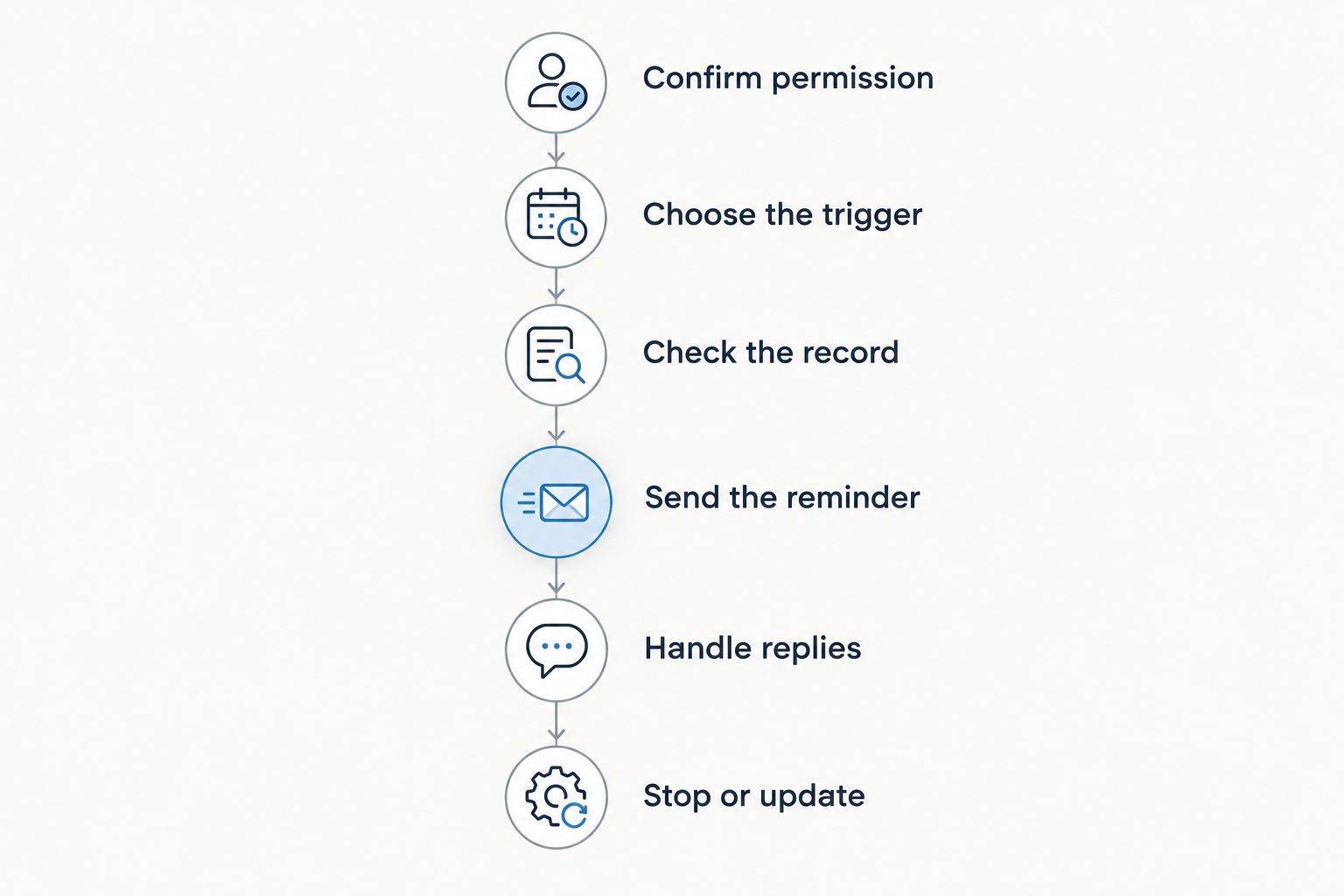
Test changes and cancellations as carefully as the original reminder.
Before using this workflow with clients, run it against a test contact you control. Include a changed appointment and a cancellation, not just a successful send. Keep a record of the behavior you have actually verified.
Which messages should stay under your direct control?
Automate predictable prompts, not unresolved decisions. A consultation reminder has a defined purpose. A conversation about a family disagreement, a disputed balance, or a significant timeline revision needs your judgment.
Keep these messages planner-led:
Sensitive conversations: Explain budget concerns or family issues directly rather than putting them into an unattended sequence.
Unapproved changes: Confirm the decision before sending an update that presents it as final.
Urgent event-day instructions: Use direct contact and an acknowledgment process; do not rely on a queued reminder as confirmation that someone understands a change.
Messages with unclear recipients: Resolve who is authorized to receive the information before sending it.
Texting also needs a clear boundary with vendor coordination. A couple's reminder should not become an accidental vendor instruction, and a vendor's reply should not change a client-facing timeline without your review.
For your 2026 operating procedure, write down which messages require approval. That rule matters more than how many templates you can create.
Where does Rundown fit into client communication?
Rundown provides CRM, client portals, timelines, budgets, and vendor coordination for professional wedding and event planners. Rundown is best for professional planners who want those planning functions in one connected system.
That makes the underlying workflow relevant to this decision: start with the inquiry and client record, then keep the planning details connected through the final timeline. Evaluate automatic SMS as a separate requirement rather than inferring it from CRM or client-portal functionality.
The practical benefit is a connected planning workspace. The boundary is equally important: choosing that workspace does not, by itself, establish how a particular texting workflow sends, receives, or stops messages.
If you are evaluating your planning setup in 2026, start the free plan and review the core workflow first. Before committing to automated texting, verify the exact SMS behavior you need.
Start with your planning workflow
Explore connected CRM, client portals, timelines, budgets, and vendor coordination.
Can clients reply to an automated wedding-planning text?
Clients can reply when the sending service supports inbound SMS, but you must verify where those replies go. Two-way messaging is a separate requirement from sending reminders automatically.
During the demonstration, reply with a request to reschedule. Check who sees it, how it connects to the wedding, and whether the pending reminder changes after the appointment is updated.
Will a long reminder send as one text?
A single SMS holds up to 160 GSM-7 characters or 70 UCS-2 characters. Longer messages are segmented, and the character encoding affects how much text fits in each segment.
Keep operational reminders short and preview the actual message in your sending tool. Put detailed schedules, files, and decisions in the appropriate planning record instead of turning a reminder into a long text thread.
Can automated texts replace the client portal?
No—automated texts are prompts, while a client portal provides a place for clients to access planning information. Use a text to direct attention to a task or update rather than making the message the only record of it.
Keep final decisions in the planning system. That gives you a clear place to check when an email, text, and conversation contain different versions of the same detail.
FAQ
Can wedding planner software text clients automatically after an inquiry?
Yes, when a verified SMS workflow supports an inquiry-based trigger. Confirm the recipient, texting permission, message content, and stop conditions before enabling it.
Does automated email mean my wedding planning software also sends texts?
No—automated email does not establish SMS support. Ask for a separate demonstration of an outgoing text, an incoming reply, and a canceled reminder.
What's the best first automated text for a wedding planner?
A consultation reminder is a practical first workflow because it has a defined recipient, appointment, and reason to send. Test rescheduling and cancellation before using it with clients.
Can I automatically text both members of the couple?
Only if the texting workflow supports the required recipients and you have recorded the appropriate preferences. Verify recipient selection rather than assuming every contact on the wedding receives the same message.
Should automatic texts include the whole wedding timeline?
No—use an automatic text to draw attention to the current timeline, not to duplicate the entire runsheet. Keep the approved schedule in the planning record and confirm urgent changes directly.
Is Rundown a fit if I want connected wedding planning software?
Rundown is a fit for professional planners seeking connected CRM, client portals, timelines, budgets, and vendor coordination. Verify automatic SMS separately before treating it as part of your communication workflow.
What should I check before switching automatic client texts on?
Check recipient selection, permission, time zones, replies, and cancellation behavior. Run the workflow with a test contact and change the appointment before trusting it with live client reminders.
One last thing
Make the cancellation test your final acceptance test. Send a reminder successfully, then repeat the workflow with an appointment you cancel before the scheduled send.
A successful text proves delivery worked in that instance. A stopped reminder shows whether the automation respects a changed plan—the detail that matters when your calendar moves and your clients expect you to stay in control.