Can event planner CRM integrate with email inboxes?
Can event planner CRM integrate with email inboxes? Yes—check reply capture, event matching, permissions, and sending before connecting your mailbox.

Yes, an event planner CRM can integrate with email inboxes through a direct mailbox connection, email forwarding, or a separate automation connection, depending on the software. The key distinction is whether the connection captures incoming replies against the correct client and event—not just whether it sends outgoing emails.
TL;DR
Can event planner CRM integrate with email inboxes? Yes, but sending emails and capturing replies are different capabilities.
Test incoming replies, sent messages, event matching, and permissions before connecting your working inbox.
Rundown suits professional wedding planners seeking CRM, budgets, timelines, client portals, and vendor coordination in one system.
Keep email capture separate from approval: a message should not silently change your final runsheet.
Can event planner CRM integrate with email inboxes?
Yes—but choose the connection by what happens after someone replies. A send-only connection does not provide the same record as a connection that also captures incoming messages. Start with your actual inquiry-to-wedding workflow, not an integration badge.
If you are choosing software in 2026, use this guide to choosing a CRM for your wedding planning business alongside the email checks below.
Direct mailbox connection
Best for: Planners who need correspondence alongside client records
What to verify: Incoming replies, sent messages, sender identity, and event assignment
Limitation to check: Connecting a mailbox does not establish that every folder or message type is included
Email forwarding or BCC capture
Best for: Planners who want to attach selected correspondence to records
What to verify: Whether the copied message reaches the correct client and wedding
Limitation to check: Capturing one message does not establish ongoing conversation sync
Separate automation connection
Best for: Planners with a defined email-triggered task
What to verify: Trigger, destination, permissions, and failure handling
Limitation to check: A workflow that sends an update does not necessarily capture the reply
These are connection methods to evaluate, not a feature list for any particular platform. Ask the software provider to demonstrate the exact method you intend to use.
Why this matters
When you manage roughly 10–30 weddings per year, the useful question is not whether an email reached someone. It is whether you can find the decision later, connect it to the right wedding, and act on it without searching unrelated threads.
A couple’s message about ceremony timing belongs in the event’s working context. A florist’s revised arrival instructions belong with vendor coordination. Neither message should become a final timeline change without your review.
Your inbox holds the conversation; your planning records should hold the confirmed decision. Email integration supports that handoff. It does not replace it.
Direct mailbox connection: check both directions
A direct mailbox connection gives the CRM authorized access to specified email functions. The permission request determines what access you grant; the software’s implementation determines what it does with that access.
Check sending and receiving separately. Ask whether messages sent from your usual email app appear in the CRM, whether replies return to the event record, and whether messages sent inside the CRM appear in your mailbox.
For your 2026 software evaluation, ask the provider to demonstrate:
A new inquiry arriving from an unfamiliar address.
Your reply sent from the CRM.
The client’s response appearing against the correct record.
A message sent from your regular inbox, outside the CRM.
Disconnection of the mailbox and an explanation of what remains stored.
The benefit is a correspondence record closer to your planning work. The trade-off is the need to understand access, matching rules, and what happens when authorization stops working.
Choose a direct connection when its demonstrated behavior matches how you actually communicate. Do not assume that the word “connected” means complete, bidirectional synchronization.
Email forwarding: check what gets captured
Forwarding and BCC capture send a copy of a message to another destination. In a CRM that supports email capture, that destination can be used to associate correspondence with a record.
This approach suits selective capture: you choose which messages belong in the planning system. Its limitation is equally important. A copied email is not proof that later replies, attachments, or the rest of the thread will follow automatically.
Before relying on forwarding, establish who performs it and what happens afterward. If your assistant forwards a vendor update, can you identify the original sender and wedding? If the client replies only to your regular inbox, does anyone need to capture that reply separately?
Use forwarding as a defined process, not an assumed background sync. Write the rule in your operating checklist so correspondence does not depend on someone remembering an undocumented step.
Automation connections: separate sending from conversation history
An automation connection performs a specified action when a defined trigger occurs. For example, your evaluation scenario might be an email notification after you approve a client update. That is a workflow requirement—not evidence that a particular product supports it.
The advantage is control over a repeatable action. The limitation is scope: the automation only does what its trigger, conditions, and action specify.
Ask what happens when the action fails, the recipient changes, or the same trigger occurs again. You also need to know where replies go and whether they return to the client record.
For 2026, make this your acceptance rule: a successful outbound email is not a successful conversation test. The test ends when the reply is visible in the place where you manage the wedding.
How to test an email connection before using it with clients
Use test contacts rather than live client conversations. Build a small acceptance test that reflects the mistakes you need the system to prevent—not just the easiest demonstration the software can pass.
Create test records. Set up 2 test weddings with clearly different names. Include a couple, a vendor, and a contact associated with both events.
Connect one mailbox. Start with 1 test mailbox and review the requested permissions before approving access. Keep your working inbox out of the first test.
Send test messages. Send 3 test emails: a new inquiry, a reply to an existing conversation, and a vendor message mentioning an event. Check where each lands.
Check event matching. Confirm the correct client and wedding association. Then test a message whose sender alone cannot identify the event.
Review access. Sign in using the access level an assistant would receive. Check whether unrelated messages or internal correspondence become visible.
Test disconnection. Disconnect the mailbox, document the result, and reconnect it. Check how you identify missing or failed correspondence.
Keep a pass-or-fail note for each step. A vague “email works” note will not help when a vendor’s message appears in the wrong wedding.
The sequence below keeps the test focused on the full handoff, from a controlled setup to a recoverable connection.
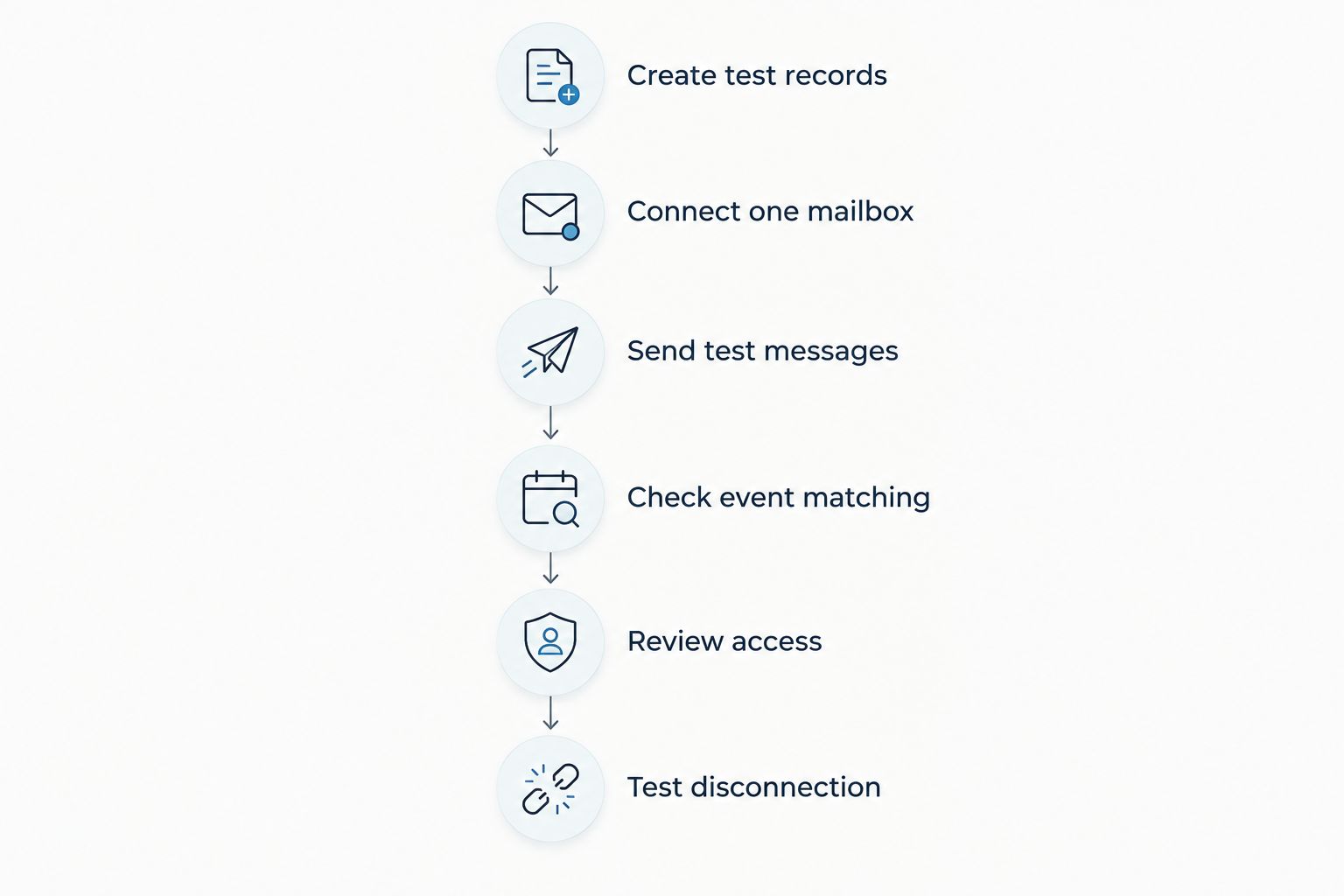
Test message placement and access before connecting your working inbox.
After the test, keep the results with your setup notes. Reuse the same checks when you change mailbox accounts, team access, or the connection method.
Why email integration behavior varies
Email integration is not a single capability. The result depends on the connection’s scope and the rules that move correspondence into your planning records.
Connection method. Direct authorization, forwarding, and automation perform different jobs. Evaluate the actual workflow rather than treating them as interchangeable.
Granted permissions. Permission to send mail is different from permission to read it. Review the authorization request against the functions you need.
Message coverage. Ask about incoming mail, sent mail, attachments, and existing conversations separately. A demonstration of one does not establish the others.
Record matching. A sender can be associated with more than one wedding. Check how the software resolves that ambiguity and how you correct an assignment.
Team access. Mailbox access and CRM access are separate decisions. Confirm who can see captured correspondence after it enters the system.
Connection status. Revoked access or a disconnected workflow needs a visible recovery process. Establish who checks failures and restores the connection.
Choose the smallest access scope that supports your required workflow. More mailbox access is not automatically more useful event management.
Will email integration update my wedding timeline automatically?
Email integration alone does not establish automatic timeline updates. Capturing a message and changing an approved runsheet are different actions; require a demonstration of each before relying on either.
Consider a vendor email proposing a revised arrival time. Your process should distinguish the proposed change from the confirmed instruction, then identify who approves the final timeline update.
For your 2026 workflow, keep the approval step explicit. A captured message is supporting context, not an instruction to publish every suggestion a vendor sends.
Can I connect a shared inbox instead of my personal inbox?
A shared inbox connection depends on the CRM, email provider, and mailbox type. Ask the provider to demonstrate your actual shared-mailbox setup rather than accepting a demonstration using a different kind of account.
Check sender identity, reply routing, and team visibility together. Your assistant needs to know who replied; your client needs to recognize the sender; you need a usable record without exposing unrelated correspondence.
Does connecting email replace a client portal?
Connecting email does not replace a client portal. Email manages correspondence; a portal provides a separate place for the client-facing information and interactions the software supports.
Decide where each confirmed item belongs. A conversation about a budget change should lead you to review the budget record, rather than leaving the approved decision buried in the thread.
Where Rundown fits in the decision
Rundown is for professional wedding planners who want CRM, client portals, timelines, budgets, and vendor coordination in one system. That connected planning scope is the reason to evaluate it—not an assumption about a particular mailbox connection.
With Rundown, assess the whole journey from first inquiry to last dance. Then use the email acceptance test to establish the mailbox behavior you require before moving active conversations.
The fit is a connected practice-management workflow. The boundary is that an email-specific requirement still needs its own check; the presence of a CRM does not establish a particular provider, permission model, or synchronization direction.
Start with the free plan and evaluate the planning workflow. Confirm the email functions you need before making them part of your client communication process.
Start with your planning workflow
Explore CRM, client portals, timelines, budgets, and vendor coordination together.
FAQ
Can event planner CRM integrate with email inboxes?
Yes, event planner CRM software can connect with email inboxes through supported mailbox connections, forwarding, or automation. Verify sending, incoming reply capture, and event matching separately.
Is sending emails from a CRM the same as syncing my inbox?
No, sending emails from a CRM does not establish inbox synchronization. Test whether incoming replies and messages sent from your usual email app appear in the correct CRM record.
Can I connect Gmail or Outlook to any event planner CRM?
No, you should not assume every event planner CRM supports Gmail or Outlook. Confirm the provider, account type, and supported functions with the software provider before authorizing access.
Will vendor emails attach to the correct wedding automatically?
Automatic assignment depends on the CRM’s matching rules. Test a vendor associated with multiple weddings and confirm how you review or correct the event assignment.
Can my assistant read every email after I connect my inbox?
Your assistant’s visibility depends on mailbox permissions and CRM access settings. Test the assistant’s actual access level before connecting an inbox containing unrelated correspondence.
Does Rundown include more than a CRM?
Yes, Rundown includes CRM, client portals, timelines, budgets, and vendor coordination for professional wedding and event planners. Confirm any email-specific requirement separately during your evaluation.
What should I test before connecting my working inbox?
Test outgoing messages, incoming replies, event matching, team visibility, and disconnection. Use test records first so you can inspect the results without involving live client conversations.
One last thing
The most revealing test message is not the straightforward inquiry. It is a message from a vendor who works on multiple weddings with you and leaves the event name out of the subject line.
Make that part of your 2026 acceptance test. Require a clear way to review and correct ambiguous messages before relying on automatic assignment. A visible exception is easier to manage than correspondence quietly filed under the wrong wedding.