
Does wedding planner software work with tools I already use?
Does wedding planner software work with tools I already use? Yes—check the exact connection. Test calendars, files, budgets, and permissions before switching.
Featured

Yes—wedding planner software can work alongside tools you already use, but compatibility depends on the exact connection and the information it transfers. A calendar connection does not automatically cover email, files, contracts, or accounting. In 2026, choose software by testing your real workflow, not by counting the logos on an integrations page.
TL;DR
Does wedding planner software work with tools I already use? Yes, when the specific connection supports your workflow.
Rundown suits professional planners who want CRM, client portals, budgets, timelines, and vendor coordination in one system.
Check transfer direction, update behavior, permissions, and error handling before depending on an integration.
Keep specialized tools when they serve a clear purpose; avoid maintaining competing versions of the same wedding record.
Why this matters
If you manage 10–30 weddings per year, evaluate compatibility around the records you maintain: inquiries, proposals, budgets, vendor details, and final timelines. A connection is useful when it moves the information you need without creating another record you must reconcile.
Start with one recurring handoff. If calendar changes are the issue, use the Google Calendar to synced wedding timelines workflow guide to frame the questions you need answered. Then test the specific setup before making it part of your client process.
The goal is not to connect every tool. It is to give every important record a clear home.
Does wedding planner software work with tools I already use?
Yes, through supported direct connections, automation services, or manual transfers. These approaches are not interchangeable: each gives you a different way to move information and a different responsibility for keeping it accurate.
Use this comparison when reviewing wedding planner software in 2026. Treat it as a checklist for the proposed connection, not a promise that every platform supports every approach.
Direct connection
Best for: Planners whose existing tool has a supported connection
Practical advantage: Keeps the handoff within the connected applications
Limitation to check: Supported fields, transfer direction, and update behavior can differ
Automation service
Best for: Planners needing a supported trigger-and-action workflow
Practical advantage: Connects a defined event to a defined task
Limitation to check: Adds another workflow to configure, monitor, and troubleshoot
Manual transfer
Best for: Planners making occasional, controlled handoffs
Practical advantage: Gives you an opportunity to review information before transferring it
Limitation to check: Requires a person to repeat the handoff and check accuracy
Ask for a demonstration of your actual task. Saying that a platform connects to a calendar is not the same as showing what happens when you move the ceremony time after vendors have received the runsheet.
Write your requirement as an action: when this record changes here, this information must change there. That sentence makes the connection testable. A list of application names does not.
Direct connections: check what actually transfers
Best for: a recurring handoff between applications with a supported connection. Start by identifying the exact information involved. A calendar event might need a title, date, start time, end time, and location; your planning workflow might also need vendor assignments or internal notes.
Ask the provider to distinguish between creating a record and updating an existing record. A connection that creates an appointment does not, by itself, establish that later edits or cancellations transfer correctly.
For each direct connection, check:
Direction: Does information travel from the planning system to the existing tool, in the opposite direction, or both?
Fields: Which details transfer, and which remain only in the original application?
Edits: What happens when you change an existing record?
Deletion: What happens when you cancel or remove it?
Access: Which account authorizes the connection, and who can see the transferred information?
The advantage is a defined connection between applications. The trade-off is accepting its actual boundaries rather than assuming that everything in both systems stays aligned.
Keep the test focused. If your requirement is calendar scheduling, judge the connection on calendar scheduling—not on whether unrelated budget details also transfer.
Automation services: check the trigger and the action
Best for: a repeatable task that has a clear starting event and a supported next action. Describe the workflow before choosing how to build it. For example, your requirement might be to start a client handoff when a booking status changes.
That is a requirement to verify, not evidence that a particular platform supports it. Confirm both ends: the planning software must expose the necessary event, and the destination must accept the information you want to send.
Ask these questions before relying on the automation:
What exact event starts the workflow?
What prevents the same event from creating duplicate records?
What happens when a required field is empty?
Where do you see a failed action?
Who checks failures and corrects the affected record?
Automation can connect a specific handoff without replacing either application. Its limitation is operational ownership: someone still needs to know how the workflow behaves and what to do when it stops.
Do not automate an unclear process. Decide what a confirmed booking means, which information is required, and who owns the next action before connecting the tools.
Manual transfers: keep them deliberate
Best for: occasional handoffs where you want a review before information moves. Manual transfer can mean entering information yourself, importing a supported file, or sharing a document through an agreed process.
The benefit is control over the handoff. You can check names, dates, categories, and permissions before making information available elsewhere. The limitation is that later changes need another deliberate action; an earlier transfer is not evidence of an ongoing sync.
For a manual process, name the person responsible and the point at which the transfer happens. Also define what counts as complete. Uploading a file is not the same as checking that its contents landed in the correct wedding record.
A spreadsheet can remain useful for a specific calculation or an external handoff. It becomes harder to manage when it competes with another system for the same live budget or vendor list. Choose the authoritative record and document the transfer direction.
Why compatibility varies
A useful compatibility check in 2026 looks beyond whether two application names appear together. These factors determine whether the connection fits your planning process:
The task you need: Creating an inquiry, updating a timeline, sharing a file, and transferring an expense are different requirements.
The fields involved: A contact name alone is not enough when your handoff also needs an event date, vendor category, or budget allocation.
The direction of travel: Sending information outward is different from bringing edits back into the planning record.
Account permissions: The person authorizing the connection needs appropriate access, and recipients should receive only the information intended for them.
Change handling: Initial creation, later edits, cancellations, and duplicate submissions need separate checks.
Operational ownership: Every connection needs a person responsible for reviewing failures and resolving conflicting records.
These are selection criteria, not technical extras. If a connection cannot support the handoff you depend on, an integration badge does not solve the problem.
How do I test compatibility before switching?
Test 1 sample wedding from inquiry through the final timeline before moving active client work. Use fictional client details and representative records so you can examine the process without sending test information to real couples or vendors.
For your 2026 evaluation, use this sequence:
Map tools. List the applications involved in inquiries, proposals, calendars, documents, contracts, budgets, and vendor coordination. Beside each, write the job you need it to keep doing.
Assign ownership. Identify the authoritative home for each record. Decide where a ceremony time, vendor contact, or budget adjustment should first be changed.
Create records. Build the sample wedding using the information your real projects require. Include details that matter to the handoff, not just a client name.
Test changes. Change the event date, a vendor contact, and a budget entry. Inspect each destination instead of assuming that a successful initial transfer proves updates work.
Check access. Review what a client, collaborator, or vendor can see through the proposed sharing process. Confirm that internal notes stay outside external handoffs.
Document recovery. Record how you identify an unsuccessful transfer and correct it without creating a competing version of the record.
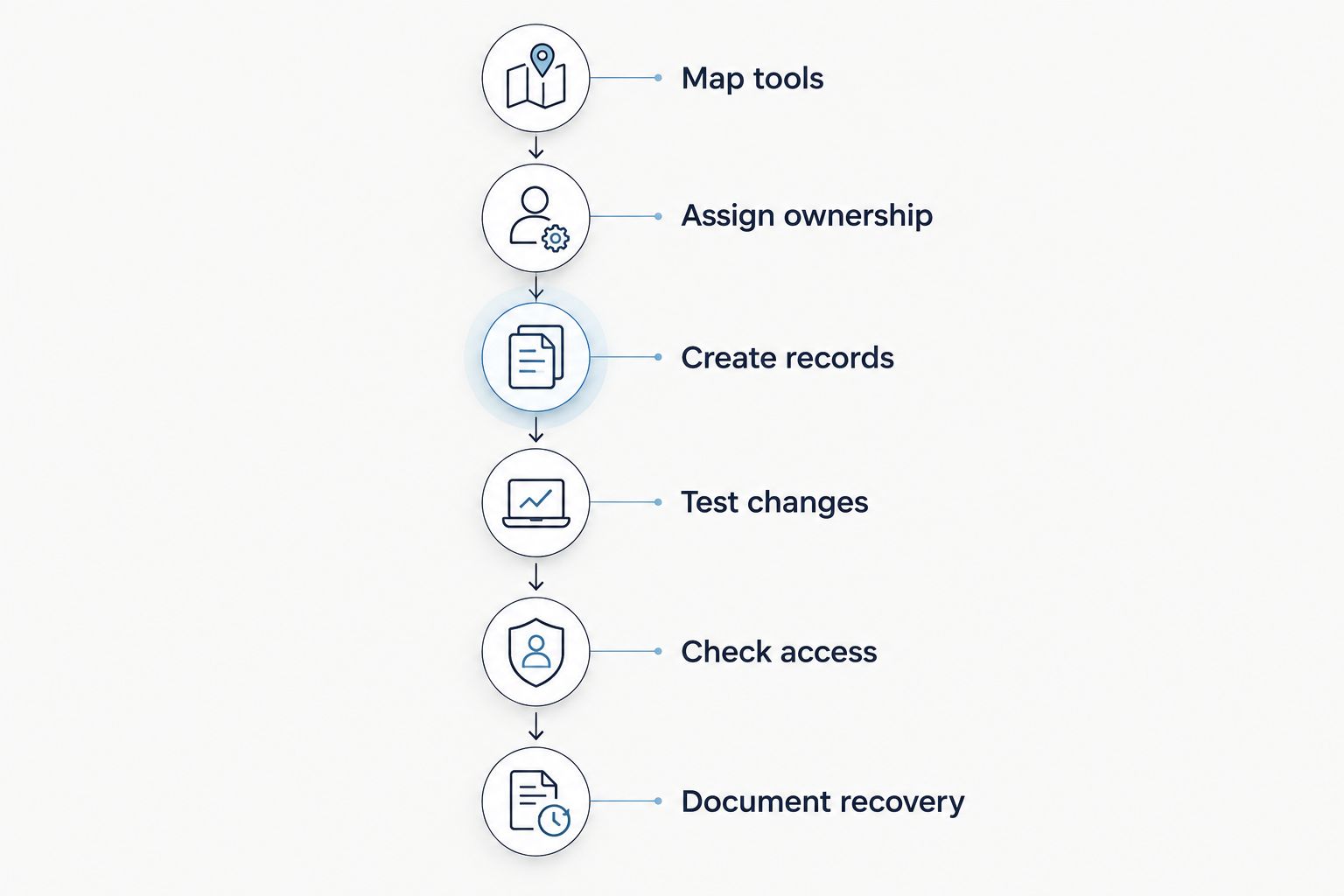
Test changes and permissions, not just the first successful transfer.
Finish with 3 checks: the original record is correct, the destination record is correct, and the intended recipient has appropriate access. If any check fails, resolve it before expanding the workflow.
Should I keep my existing tools or consolidate?
Keep an existing tool when it has a clear job that the new system does not need to take over. Consolidate when two applications are competing to hold the same live planning information.
For example, distinguish a working wedding budget from the records used for your business accounting. Define the handoff between those jobs rather than assuming that one view serves both. Apply the same logic to a client-facing timeline and your internal working notes.
Rundown brings built-in CRM, client portals, timelines, budgets, and vendor coordination into one system. Rundown is best for professional wedding planners who want one connected system from inquiry through the final timeline. That is the relevant distinction to assess alongside Aisle Planner: how the workflow fits your business, rather than an unsupported claim that one platform handles every connection better.
The benefit of Rundown wedding planner software is keeping those planning functions together. The evaluation boundary is separate: having connected planning features does not establish compatibility with every outside application. Check the particular handoffs you intend to retain.
Start with one wedding workflow
Try Rundown's connected planning system, then check the handoffs your existing tools need.
Do I need two-way sync for everything?
No—you need two-way sync only when your process requires edits from both applications to return to the other. If one system owns the record and the other only receives it, a verified one-way transfer can match the job.
Define ownership first. Otherwise, two-way editing introduces a question you still need answered: which version should win when the same information changes in both places?
Will clients and vendors need accounts in every tool?
Account requirements depend on the platform and the sharing method. Check the recipient's actual path: receiving an email, opening a shared document, reviewing a client portal, and editing a record are different activities.
Test with the access level you intend to provide. A planner's administrator view does not demonstrate what a couple or vendor will see.
Can I switch without moving every existing wedding?
Use a staged transition if your chosen setup supports it. Start with the sample wedding, establish the workflow for new bookings, and decide separately how to handle active projects.
For weddings already underway, keep a clearly identified authoritative record until the transition is complete. Do not leave vendors and clients choosing between two competing timelines.
FAQ
Does wedding planner software work with tools I already use?
Yes, wedding planner software can work alongside existing tools through supported direct connections, automation services, or manual transfers. Verify the exact fields, transfer direction, and update behavior for your workflow.
Will my wedding calendar automatically stay up to date?
Only a connection verified to transfer the relevant changes supports that expectation. Test edits and cancellations separately from creating the first calendar event.
Can I keep using spreadsheets for wedding budgets?
You can keep spreadsheets for a defined calculation or handoff. Choose one authoritative home for the live wedding budget so changes do not compete across records.
Does a client portal replace my email?
A client portal and email serve different communication needs. Decide which information belongs in the portal and which messages remain in your email process, then verify any proposed connection.
Is Rundown wedding planner software a fit for my existing workflow?
Rundown fits professional planners seeking CRM, client portals, timelines, budgets, and vendor coordination in one system. Evaluate compatibility by testing the outside tools and specific handoffs you need to retain.
What's the safest way to test a new planning system?
Test 1 sample wedding with fictional details before moving active client work. Check initial transfers, later changes, recipient access, and recovery from an unsuccessful handoff.
What should I check when comparing integrations in 2026?
In 2026, check supported tasks, fields, transfer direction, permissions, change handling, and operational ownership. Application logos alone do not establish that your workflow will work.
One last thing
Test the change after the handoff. Creating an event or transferring a contact shows that the initial action works; changing it shows whether the process remains useful throughout the wedding.
Make that your final 2026 selection test. Move the ceremony time, correct a vendor detail, and inspect the places where you expect those changes to appear. Choose the workflow you can explain, verify, and maintain—from first inquiry to last dance, without the chaos.
Related guides

