
DocuSign Wedding Contract Signing: Automate Handoffs 2026
DocuSign wedding contract signing: automate handoffs, not signatures. Set up recipients, verify completion, and keep CRM updates separate from booking approval.
Featured

Instead of manually checking every wedding contract and copying signing updates into your CRM, build a DocuSign wedding contract signing workflow that hands completed agreements to your booking process. Automate sending and status handling only through connections you have verified; your clients still review and sign their own contracts.
TL;DR
DocuSign wedding contract signing should automate delivery and status tracking, not a client's signature.
Rundown connects wedding-planning operations; verify any DocuSign connection before building automated CRM updates.
Use envelope completion, not an individual signature, to trigger your contract-complete handoff.
Keep signed contracts, payment status, and booking approval separate in your wedding planner CRM.
Why this matters
Your contract workflow sits between a promising inquiry and a wedding you can confidently manage. A sent agreement is not a signed agreement, and a signed agreement is not evidence that a payment arrived. Keep those distinctions intact before connecting anything.
For an independent planner managing 10–30 weddings per year, the goal is a repeatable handoff: the right agreement reaches the right people, required signatures are collected, and the correct wedding record gets updated. You should not need to reconstruct that sequence from your inbox.
Rundown is best for professional wedding planners who want CRM, client portals, budgets, timelines, and vendor coordination together. Rundown supplies that planning context; DocuSign handles the electronic-signature portion described here. This guide does not assume a native connection between them.
For your 2026 setup, define what counts as contract completion before configuring notifications. That decision determines everything downstream.
Before you start
Accounts and permissions: Have access to DocuSign to prepare and send agreements, plus permission to update your wedding CRM. For automated handoffs, confirm your accounts support the specific connector or API route you intend to use.
Approved materials: Prepare your reviewed contract, signer names and email addresses, required countersigners, and a stable wedding reference. Keep the reference distinct from a couple's display name.
The gotcha: A recipient finishing their signature does not necessarily mean the envelope is complete. If your agreement requires another client or your countersignature, wait for all required signing actions before advancing the contract status.
Use a document clearly marked as a test for setup. Do not use a live couple's agreement to discover that your workflow sends duplicate messages or updates the wrong wedding.
Which system owns which job?
These tools serve different roles. Compare responsibilities rather than treating a signature service and practice-management software as interchangeable.
DocuSign
Best for: Sending agreements for electronic signature
Role in this workflow: Prepare documents, route signatures, and track envelope completion
Benefit: Keeps signing activity tied to the agreement
Limitation: Envelope completion alone does not establish payment or your booking decision
Rundown
Best for: Professional wedding-planning operations
Role in this workflow: Manage CRM, client portals, timelines, budgets, and vendor coordination
Benefit: Keeps planning work in one connected system
Limitation: A DocuSign connection is not established by the capabilities described here
Keep signing evidence in the signature workflow and booking decisions in your planning workflow. Connecting them should preserve that boundary, not erase it.
Contract preparation
Create a repeatable agreement
Start with your approved wedding-planning contract. Check the couple's names, event date, scope, venue details where applicable, and any attachments referenced in the agreement. Have qualified counsel review legal wording rather than treating software setup as legal review.
Decide who must sign. Include every required client signer and your countersigner when your agreement calls for one. Do not add a vendor as a signer merely because the vendor appears in your planning records.
Give the agreement a stable wedding reference in your own tracking process. Use the same reference when recording the envelope against the CRM record. Do not rely exclusively on an email address: a couple can have more than one event or agreement.
Document your 2026 contract version in your internal records. When you revise the underlying agreement, distinguish new sends from envelopes already in circulation.
Expected result: You have one approved agreement, a defined recipient list, and an unambiguous wedding record to associate with the signing process.
Define the handoff rules
Write separate rules for contract sent, contract completed, and booking approved. Contract sent means delivery has started; contract completed means required signing actions have finished. Booking approved means your own booking conditions have been satisfied.
If payment is part of those conditions, check payment separately. A signature event must not mark a retainer received or overwrite a budget entry.
DocuSign envelope configuration
Prepare and send the envelope
Create an envelope in DocuSign and upload the approved agreement. Check that the uploaded document matches the version you intended to send, including attachments.
Enter each recipient's name and email address. Assign Needs to Sign to recipients who must sign. Treat anyone receiving a copy as a separate role, not as evidence of agreement.
Enable Set signing order when your contract process requires sequential signing. For example, use an ordered sequence if your countersignature must follow the clients' signatures. Do not impose an order without a process reason.
Select Next to prepare the signing fields. Assign each signature, date, and other required field to the intended recipient. Inspect the recipient assignment rather than trusting field placement alone.
Review the document, recipients, and message before selecting Send. Your message should explain what the agreement covers and where the couple should direct questions.
Expected result: The envelope is sent to the intended recipients, with signing fields assigned to the correct people and a deliberate signing sequence.
Button placement can differ across DocuSign interfaces. Use the named controls for their stated purpose; do not substitute a similarly named action without checking what it does.
Record the envelope relationship
Save the envelope identifier alongside the wedding reference in your internal tracking process. This relationship is what lets you distinguish the original agreement from an amendment, replacement envelope, or unrelated document.
For your 2026 workflow, retain the contract version with that relationship. A completion event without a document reference is not enough to identify which agreement the couple accepted.
Completion handoff configuration
Establish the connection boundary
Confirm whether your actual accounts expose a supported route for receiving DocuSign envelope-status updates and updating the destination CRM. Check both ends; a DocuSign connector alone does not prove the destination supports the action you need.
If the connection is supported, configure the source around envelope completion. Require the envelope's completed status rather than a viewed document, a sent envelope, or one recipient's completed action.
Match the envelope identifier to the stored wedding reference. Stop the workflow for review if the match is missing or ambiguous. Never create a new wedding automatically just because a match failed.
Update only the contract-related status and retain the completion evidence through your approved document-storage process. Keep payment status and booking approval outside this action.
If the destination action is unsupported, use a manual handoff: review completion in DocuSign, match the envelope to the wedding, and record the result in your CRM. Do not describe that process as an automated integration.
Expected result: A completed envelope produces either a verified CRM update or a clearly assigned manual task, without guessing which wedding to change.
The handoff follows a simple sequence: Envelope completed, Wedding matched, Contract recorded, Booking reviewed. The last stage remains a decision against your booking requirements, not a synonym for signature completion.
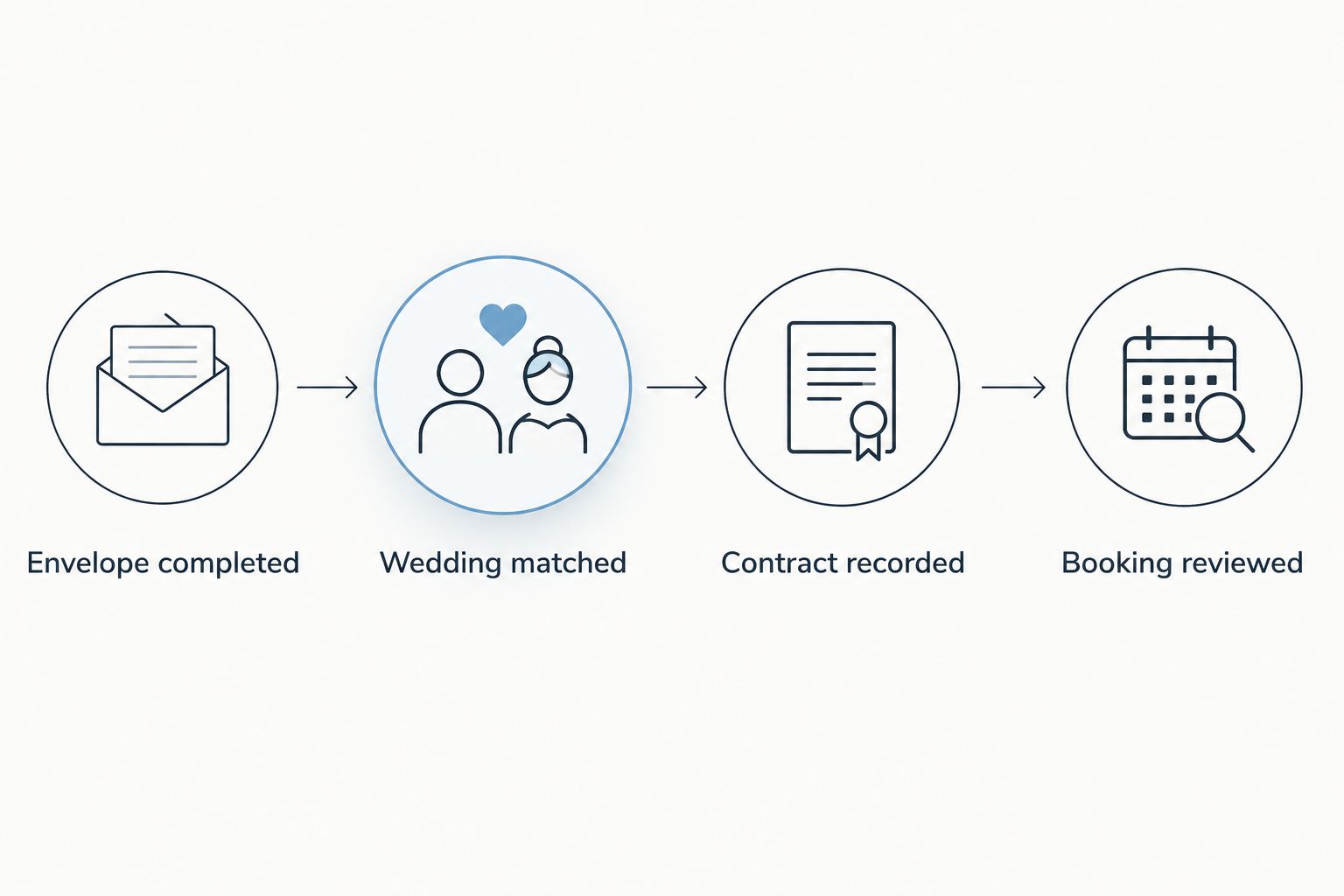
Contract completion feeds booking review; it does not replace it.
Prevent repeat processing
Design the handoff so processing the same completed envelope again does not create another onboarding task or send another welcome message. Store the processed envelope identifier in your tracking process and check it before repeating downstream actions.
Separate original contracts from amendments. Both can reach completed status, but only the appropriate agreement should initiate your booking handoff.
Workflow validation
Test before sending live contracts
Send 1 test envelope using accounts you control. Keep the document clearly marked as a test and separate from client records.
Use 2 test signers if your normal contract requires multiple signatures. Complete only the first signing action, then confirm that your workflow has not marked the contract complete.
Finish the remaining required signing action. Confirm that the completion handoff targets the intended test wedding and changes only the contract-related information.
Test 3 outcomes: completed, declined, and voided. Completion should follow the contract-complete path; a decline or void should not initiate booking approval.
Repeat the completion-processing step in your automation test environment where supported. Confirm that the existing update remains intact and no second onboarding action appears.
Expected result: Your test demonstrates correct recipient handling, wedding matching, exception handling, and protection against repeat processing.
These are recommended test cases, not claims about processing speed or software performance. Record the outcomes before using the workflow for a real couple.
For your 2026 launch, assign an owner to failed handoffs. An automation that stops safely still needs someone to resolve the stop.
Second workflow: handle a revised contract
A changed scope, event date, or agreement can require a replacement contract or amendment. Keep that workflow adjacent to the original signing process, but do not let it repeat your first-booking actions.
Identify the affected wedding and the agreement being changed. Record whether the new document replaces the original or supplements it.
Prepare the reviewed document and its required recipients. If an unsigned envelope is no longer appropriate, use DocuSign's applicable correction or voiding process rather than leaving competing agreements unexplained.
Associate the new envelope identifier with the existing wedding. Preserve the relationship to the earlier agreement in your records.
On completion, record the revised agreement and assign review of affected budgets, timelines, and vendor coordination. Do not automatically send first-booking onboarding again.
Best for: Planners handling amendments after the initial agreement. The benefit is a clear document history; the trade-off is that operational changes still require review rather than a blanket automatic update.
Troubleshooting
The workflow fires before everyone signs
Check whether the trigger represents recipient completion instead of envelope completion. Filter for the completed envelope and test with multiple signers. An early signature should not advance the contract-complete handoff.
The correct contract updates the wrong wedding
Check the matching rule. Names and email addresses are insufficient when the same people have multiple records. Match the stored envelope identifier to the intended wedding reference and route ambiguous matches for review.
The welcome message sends twice
Inspect whether repeated processing creates a fresh action every time. Add a check for the already-processed envelope identifier before creating tasks or sending messages. Keep amendment completion outside the original-contract onboarding path.
A declined or voided agreement looks booked
Remove any rule that treats all envelope-status changes as successful signing. Give declined and voided outcomes an exception path that alerts the responsible planner. Do not update booking approval from those outcomes.
DocuSign completes, but the CRM stays unchanged
Check connection authorization, destination permissions, and the actual supported update action. If that route does not exist, use the documented manual handoff. Do not retry by creating another envelope: that introduces another agreement rather than fixing the record update.
Customize your workflow
Once signing is reliable, connect the contract handoff to the work a booked wedding actually needs: an onboarding task, client-portal preparation, budget review, and timeline preparation. Give each action its own condition and owner.
In Rundown, CRM, client portals, budgets, timelines, and vendor coordination provide the planning context for those decisions. Keep contract completion distinct from permission to invite clients or begin paid-service delivery. Your business rules determine that boundary.
The guide to sending a client portal invite when a wedding is booked covers the adjacent handoff. Check the available connection route before promising automatic delivery to your team.
For a 2026 rollout, start with contract-status handling before adding downstream messages. A narrow workflow is easier to verify than one that updates records, invites clients, and changes timelines at once.
Start your connected planning workflow
Bring CRM, client portals, budgets, timelines, and vendor coordination into one planning system.
FAQ
Can DocuSign automatically sign a wedding contract for my clients?
This workflow does not sign on your clients' behalf. It automates supported delivery and status-handling steps while each required signer reviews and signs the agreement.
What should trigger a wedding contract's completed status?
Use the completed envelope status after all required signing actions finish. One client's signature is not sufficient when another signer or countersigner is still required.
Does Rundown have a native DocuSign integration?
This guide does not establish a native DocuSign integration for Rundown. Verify the supported connection and destination action in your actual accounts before configuring automated CRM updates.
Should a signed wedding contract automatically mark the wedding booked?
Only mark a wedding booked after your defined booking conditions are satisfied. Contract completion and payment confirmation are separate facts and need separate checks.
Is DocuSign or wedding planning software better for managing contracts?
DocuSign serves the electronic-signature step, while wedding planning software serves the surrounding client and event workflow. Choose responsibilities for each system rather than expecting a signing tool to manage budgets, timelines, and vendor coordination.
How do I stop a contract workflow from sending duplicate welcome emails?
Check whether the envelope identifier has already been processed before sending a welcome email. Keep replacement agreements and amendments separate from first-booking onboarding.
What should I test before launching this workflow in 2026?
Test partial signing, full completion, declined and voided outcomes, wedding matching, and repeat processing. Use clearly marked test documents and accounts you control rather than live client agreements.
One last thing
A completed amendment is not a newly booked wedding. Both documents can finish successfully in DocuSign, yet they require different actions in your CRM.
Record the document's purpose alongside its envelope identifier before you automate the handoff. That small distinction keeps a revised scope from restarting onboarding and lets your planning system support the wedding from first inquiry to last dance.
Related guides

