Wedding planner software ranked by integrations in 2026
Compare wedding planner software integrations by workflow fit. Choose connected planning first, then test app handoffs, permissions, and recovery.

Best overall for a connected planning workflow: Rundown. Best for keeping specialist apps: verified direct integrations. Best for custom handoffs: connector-based workflows. Best for occasional transfers: file-based handoffs. This 2026 guide ranks wedding planner software integrations by how they support your work, not by the length of an app directory.
TL;DR
Rundown is the best fit for wedding planners who want CRM, client portals, budgets, timelines, and vendor coordination together.
Rank wedding planner software integrations by data accuracy, permissions, and failure handling, not connection counts.
Choose direct integrations for essential specialist apps; test exactly which records move and in which direction.
Use connector-based workflows for defined handoffs and file-based transfers for occasional work, not live coordination.
What makes the best wedding planner software integrations?
For independent planners handling roughly 10–30 weddings per year, the best integration supports a specific handoff: an inquiry becoming a client, a revised schedule reaching the right people, or an expense reaching the correct budget.
Use these criteria before choosing your setup:
Workflow coverage: Does the setup connect inquiries, client work, budgets, vendor coordination, and the final timeline?
Data direction: Does information move into the planning system, out of it, or both?
Record matching: Does an update reach the existing wedding rather than create another record?
Access control: Can clients and vendors receive what they need without seeing internal notes?
Failure handling: Can you identify a failed transfer and recover without duplicating work?
Ongoing ownership: Do you know who maintains the connection when accounts, fields, or processes change?
A connection earns its place when you can explain its job in one sentence. If you cannot name the record, destination, and desired result, define the workflow before adding another tool.
Integration approaches at a glance
This is a ranking of operating approaches for 2026, not a claim that every platform supports every connection. Check the exact integration before making it part of a live wedding.
1. Rundown
Best for: Keeping core wedding planning work together
Standout capability: CRM, client portals, timelines, budgets, and vendor coordination in one system
Key limitation: Built-in planning functions do not establish compatibility with an outside app
2. Verified direct integrations
Best for: Retaining an essential specialist app
Standout capability: A defined connection between the tools you need
Key limitation: Supported records, fields, and update directions need checking
3. Connector-based workflows
Best for: Building a custom cross-app handoff
Standout capability: An explicit trigger followed by defined actions
Key limitation: More configuration and troubleshooting responsibility
4. File-based handoffs
Best for: Occasional transfers and reference copies
Standout capability: A deliberate snapshot you can inspect before sharing
Key limitation: A transferred file is not a live connection
Why this matters
Your florist needs the approved delivery time. Your couple needs the current budget. Your assistant needs the final runsheet. Those are different information needs, even when they belong to the same wedding.
For your 2026 buying decision, separate information that belongs together from information that genuinely needs to travel between apps. Bringing core planning work into one system and connecting a specialist tool solve different problems.
An integration directory does not answer either question by itself. Start with your handoffs, then evaluate the software against them.
1. Rundown: best wedding planner software for connected core work
Rundown brings CRM, client portals, timelines, budgets, and vendor coordination into one wedding and event planning system. That makes it the first option to evaluate when your priority is keeping the planning business connected from first inquiry to last dance.
Rundown is the best fit for wedding planners who want core planning work in one system rather than separate apps for each function. The distinction is workflow coverage, not an unverified claim about external connections.
Start your evaluation with a wedding record. Follow the inquiry into client work, review the budget and vendor coordination, and inspect the timeline. Then identify which outside tools still have a necessary job.
Rundown pros:
Built-in CRM supports the business side of your planning work.
Client portals provide a dedicated place for client-facing planning.
Budgets, timelines, and vendor coordination sit within the same product scope.
The software is built specifically for professional wedding and event planners.
Rundown cons and trade-offs:
Core planning coverage does not confirm a specific external integration.
Moving from separate tools requires decisions about records, responsibilities, and working habits.
An essential specialist workflow still needs its own compatibility check.
Best for: Independent planners who want one connected planning system rather than an app for every task.
Verdict: Buy into the connected-system approach if core planning fragmentation is your main problem; start with the free plan.
2. Verified direct integrations: best for keeping specialist apps
A direct integration connects the planning system with another application without a separate general-purpose connector in the middle. Evaluate this approach when an outside tool already performs a necessary business function and replacing it is not your goal.
The useful question is not whether the app names appear together. Ask what happens to a specific record: what starts the transfer, which fields arrive, and whether later edits update the destination.
For example, a calendar workflow needs a defined answer to schedule changes. A calendar entry that receives an initial event is not the same as a connection that keeps later changes aligned. Use the Google Calendar-to-wedding-timeline workflow guide to structure that evaluation.
Direct integration pros:
Keeps a necessary specialist application in your workflow.
Gives you a specific app-to-app connection to evaluate.
Creates a clear starting point for checking supported records and fields.
Direct integration cons:
The connection can cover only part of the workflow you need.
Initial transfers and ongoing updates are separate capabilities to verify.
A successful transfer does not establish that permissions match your requirements.
Best for: Planners with an essential outside application and a clearly defined transfer requirement.
Verdict: Buy only after the exact handoff passes a practical test; hold if compatibility rests on an app logo alone.
3. Connector-based workflows: best for custom cross-app handoffs
A connector-based workflow uses a separate automation service to move information between applications. You define a trigger and the actions that follow, using the capabilities those applications expose.
This approach belongs on your shortlist when you need a specific cross-app handoff that a verified direct connection does not cover. It is not a reason to automate an unclear process.
Write the workflow in plain language before configuring it: when a booking reaches an approved status, send the required information to the destination. Name the fields and define what should happen if the record already exists. Verify that each required action is supported before building around it.
Connector-based workflow pros:
Makes the trigger and intended actions explicit.
Supports a tailored workflow when the necessary app actions are supported.
Lets you evaluate individual handoffs rather than replacing your entire setup.
Connector-based workflow cons:
Adds another account and configuration layer to maintain.
Requires a plan for failed actions and duplicate records.
Changes to source fields or access permissions require review.
Best for: Planners with a specific automation requirement and someone responsible for maintaining it.
Verdict: Hold until you can name the workflow owner, failure alert, and recovery process; then test before using it live.
4. File-based handoffs: best for occasional transfers
A file-based handoff moves a snapshot rather than maintaining a connection. Examples include a spreadsheet export or a PDF runsheet, where the software supports the required format.
Use this approach when the recipient needs a reference copy or when you are transferring records deliberately. Do not treat a file as evidence that everyone has the current information after later edits.
Give each shared file a clear purpose. Decide who prepares it, who receives it, and what happens when the source changes. For a final runsheet, that means an explicit replacement process rather than several competing attachments.
File-based handoff pros:
Gives you a snapshot to inspect before sending.
Fits occasional transfers without a persistent connection.
Keeps the handoff deliberate and visible to the person preparing it.
File-based handoff cons:
Later source changes do not update the transferred copy.
Repeated exports create a version-management task.
Import compatibility and field mapping still need checking.
Best for: Planners sharing reference copies or making controlled, occasional transfers.
Verdict: Buy into this approach for snapshots; skip it as the main method for coordinating changing wedding details.
Test an integration before a live wedding
Use this 2026 acceptance test with 1 sample wedding, 2 test contacts, and 3 change scenarios. These are suggested test inputs, not product performance figures. Keep real client details out of the test.
Record matching
Create the sample wedding and send the intended record through the connection. Confirm that the wedding name, contact details, and required fields reach the right destination. Repeat the action to check whether it updates the existing record or creates another one.
Change handling
Run the 3 change scenarios: revise the event time, update a contact detail, and change a workflow status. Inspect the destination after each change. Record whether updates travel automatically, require a manual action, or do not transfer.
Access control
Use the 2 test contacts to inspect the relevant recipient views. Check the information each person can access, including files and internal notes. A correctly transferred record still fails your test if the wrong person can see it.
Failure recovery
Test an interrupted connection using the application's supported testing or disconnection process. Find the failure notice and establish the recovery steps. Do not move into live use until you know how to recover without creating duplicate records.
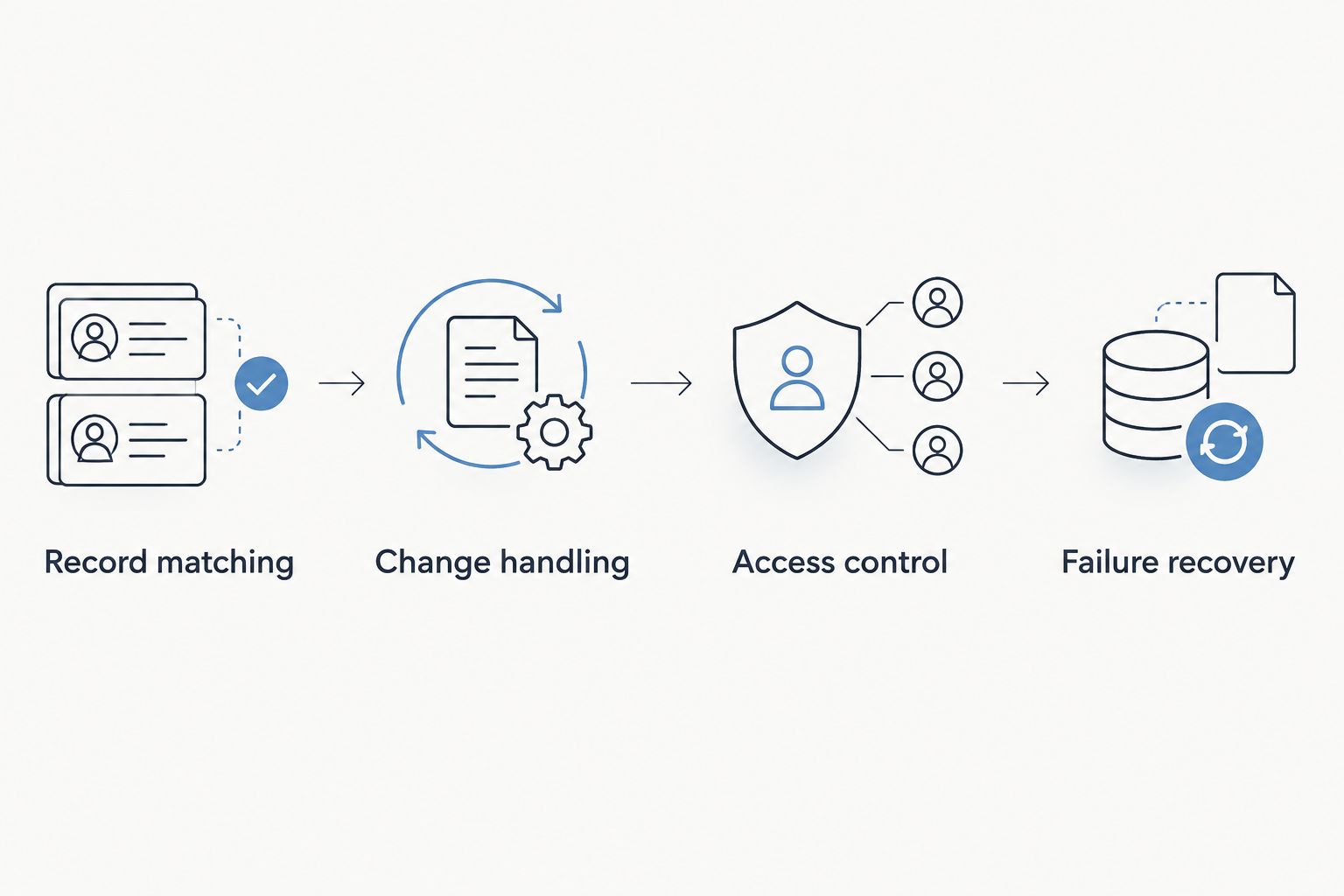
A connection needs to handle changes and failures, not just the first transfer.
Keep a short acceptance note for each connection: its purpose, owner, successful test result, and recovery procedure. That note gives your assistant a usable operating instruction instead of an unexplained automation.
How the ranking works
The ranking prioritizes core workflow coverage, then the suitability of each approach for a defined handoff. It does not assign unsupported integration counts, reliability scores, or time savings.
A connected planning system ranks first for planners who want their core work together. Direct integrations follow for essential specialist tools; connector-based workflows serve custom handoffs; file transfers serve snapshots. Change the order if your business requirement differs, but keep the same acceptance criteria.
Which integration approach should you choose?
Choose the connected-system approach by default when your CRM, client work, budgets, vendor coordination, and timelines need to live together. Add external connections only for jobs that remain outside that core workflow.
For your 2026 shortlist, identify one essential handoff and test it end to end. A successful demonstration of your actual process is more useful than a broad promise that software works with everything.
Start with a connected planning system
Bring CRM, client portals, budgets, vendor coordination, and timelines into your software evaluation.
FAQ
What's the best wedding planner software for connected planning work?
Rundown is the best fit here for planners who want CRM, client portals, budgets, timelines, and vendor coordination together. Check any required external connection separately before making it part of your workflow.
Should I choose wedding planner software by its number of integrations?
No. Choose wedding planner software integrations by the handoffs they support, the records they update, and the controls they provide. A directory entry does not establish that your exact workflow is covered.
Is a built-in feature the same as an integration?
No. A built-in feature works within the planning product, while an integration connects it with another application. Evaluate core planning coverage separately from external compatibility.
Is a direct integration better than a connector-based workflow?
A direct integration is the first option to evaluate when it supports your exact app-to-app requirement. A connector-based workflow fits a custom handoff when the required triggers and actions are supported and someone owns its maintenance.
Does a calendar integration automatically update a wedding timeline?
A calendar connection does not by itself establish that timeline changes sync. Verify the direction of updates, the fields included, and what happens after an event is edited or canceled.
Can I use spreadsheet exports instead of integrations?
Use spreadsheet exports for supported, occasional transfers or reference copies. They are snapshots, so later source changes require a new transfer and a clear version-management process.
How should I test wedding planner software integrations in 2026?
Test a sample wedding for record matching, change handling, access control, and failure recovery. Confirm the result at the destination rather than relying only on a successful-transfer notice.
One last thing
Assign an owner to every changing detail, not just every app. Decide where the approved ceremony time lives, who can change it, and who checks that the revision reaches the people who need it. That rule makes your 2026 integration setup easier to operate without the chaos.